

Tech
De-Gunk and Descale Your Keurig with These Cleaning Tips

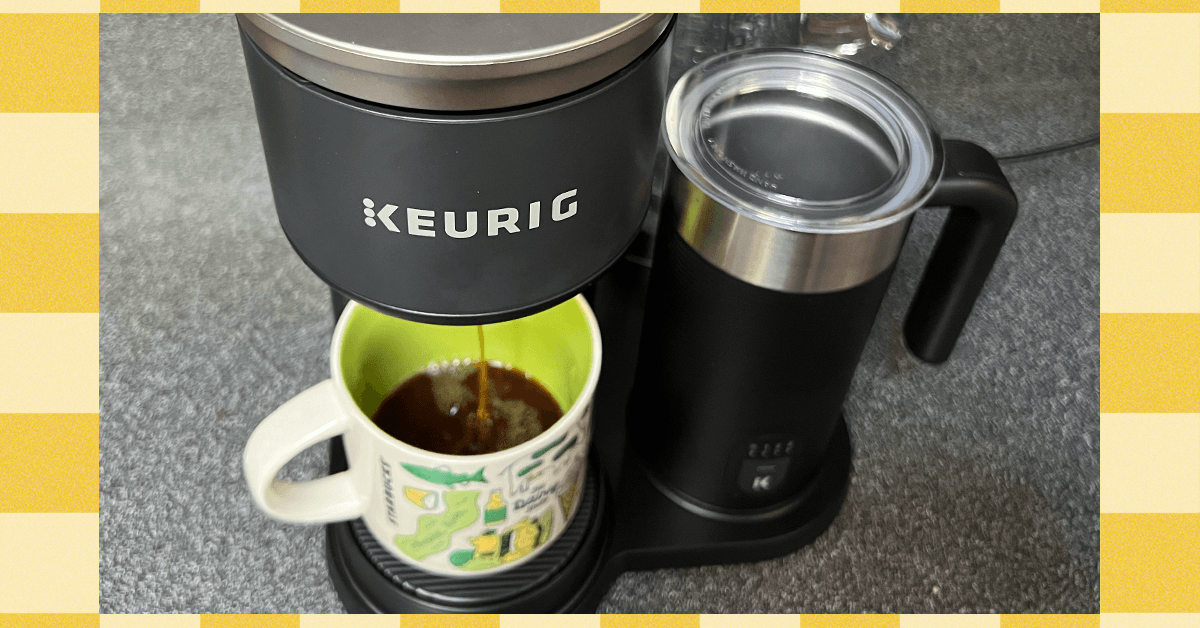
It can be tricky to figure out how to clean your Keurig, but it’s important work. If your household is like mine, your pod coffee maker runs anywhere from three to seven times per day. All of that use can cause buildup and gunk, which can affect the taste of your coffee and the lifespan of your machine. But with proper maintenance and a dedicated routine, cleaning is a breeze. Here’s everything you need to know about light daily cleaning as well as deeper cleans.
Be sure to check out our related buying guides, including the Best Pod Coffee Makers, the Best Coffee Machines, the Best Coffee Subscriptions, and the Best Milk Frothers.
Daily Maintenance
To clean the housing of your Keurig coffee maker or other pod machine, just take a damp cloth and wipe down the outside. You can clean the K-Cup holder and needle by brushing or vacuuming away any loose debris like coffee grounds—be careful near the needle part since, obviously, it’s sharp.
Some machines come with a needle cleaning tool that you insert into the top and bottom of the needle, and a few people on various forums have used a paper clip instead. Some machines have removable pod holders that can be soaked in hot water. It’s always a good idea to refer to your specific model’s user guide, and you’ll probably want to unplug your machine beforehand.
To clean your drip tray and water reservoir, remove them and wash them by hand with hot, soapy water (though avoid using too much dish soap to prevent buildup). If your machine came with a carafe, wash it by hand or pop it in the dishwasher if it’s dishwasher-safe. Let them air dry or wipe them down with a lint-free towel after rinsing them off. You should be replacing the fresh water in your reservoir often, especially if it’s been sitting for a while. If your machine has a water filter in its reservoir, replace it every two to three months. Most machines with these types of filters have maintenance reminders—heed them!
For cleaning out the internal bits and pieces, you can use something like a Keurig Rinse Pod, which helps to flush out any excess oils or flavors that might be lingering. They are especially handy after brewing with flavored K-Cups like hot cocoa or some coffee varieties. You can also just run a hot water cycle every so often, which is a particularly good idea if you haven’t used your machine for a few days.
Deeper Cleaning and Descaling
Some manufacturers recommend using filtered water or distilled water instead of tap water in your reservoirs, but I’ve always used tap water with the knowledge that I might have to clean my machine more frequently. You should deep-clean or descale your pod coffee maker every three to six months, or possibly more often if you notice hard water stains, calcium deposits, or mineral buildup, or your machine prompts you to deep-clean it.
You can do this a few ways. For the DIY method, fill your water tank with white vinegar and water (about half and half) and run large-capacity brew cycles until the reservoir is empty; Halfway through, consider letting the vinegar solution soak for a while, around 20 to 30 minutes. Follow up with a few rinsing cycles using clean water until the vinegar smell is gone. Alternatively, you can use a dedicated Keurig descaling solution according to the instructions on the bottle. That solution can be used on non-Keurig machines too. Make sure your machine is fully rinsed out before brewing your next cup of coffee.
It’s important to perform these deeper cleaning cycles on a regular basis to ensure your machine lasts as long as possible. And that your coffee tastes good, of course.
Power up with unlimited access to WIRED. Get best-in-class reporting and exclusive subscriber content that’s too important to ignore. Subscribe Today.









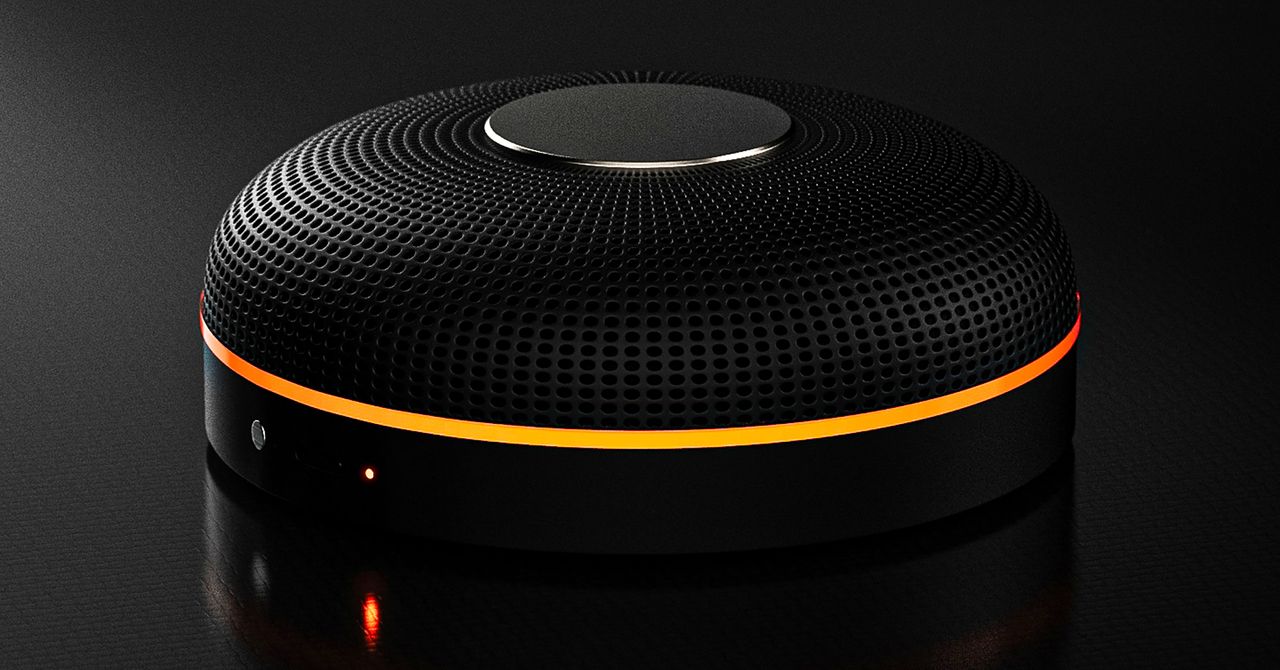
Deveillance also claims the Spectre can find nearby microphones by detecting radio frequencies (RF), but critics say finding a microphone via RF emissions is not effective unless the sensor is immediately beside it.
“If you could detect and recognize components via RF the way Spectre claims to, it would literally be transformative to technology,” Jordan wrote in a text to WIRED after he built a device to test detecting RF signatures in microphones. “You’d be able to do radio astronomy in Manhattan.”
Deveillance is also looking at ways to integrate nonlinear junction detection (NLJD), a very high-frequency radio signal used by security professionals to find hidden mics and bugs. NLJD detectors are expensive and used primarily in professional contexts like military operations.
Even if a device could detect a microphone’s exact location, objects around a room can change how the frequencies spread and interact. The emitted frequencies could also be a problem. There haven’t been adequate studies to show what effects ultrasonic frequencies have on the human ear, but some people and many pets can hear them and find them obnoxious or even painful. Baradari acknowledges that her team needs to do more testing to see how pets are affected.
“They simply cannot do this,” engineer and YouTuber Dave Jones (who runs the channel EEVblog) wrote in an email to WIRED. “They are using the classic trick of using wording to imply that it will detect every type of microphone, when all they are probably doing is scanning for Bluetooth audio devices. It’s totally lame.” Baradari reiterates that the Spectre uses a combination of RF and Bluetooth low energy to detect microphones.
WIRED asked Baradari to share any evidence of the Spectre’s effectiveness at identifying and blocking microphones in a person’s vicinity. Baradari shared a few short videoclips of people putting their phones to their ears listening to audioclips—which were presumably jammed by the Spectre—but these videos do little to prove that the device works.
Future Imperfect
Baradari has taken the critiques in stride, acknowledging that the tech is still in development. “I actually appreciate those comments, because they’re making me think and see more things as well,” Baradari says. “I do believe that with the ideas that we’re having and integrating into one device, these concerns can be addressed.”
People were quick to poke fun at the Spectre I online, calling the technology the cone of silence from Dune. Now, the Deveillance website reads, “Our goal is to make the cone of silence become reality.”
John Scott-Railton, a cybersecurity researcher at Citizen Lab, who is critical of the Spectre I, lauded the device’s virality as an indication of the real hunger for these kinds of gadgets to win back our privacy.
“The silver lining of this blowing up is that it is a Ring-like moment that highlights how quickly and intensely consumer attitudes have shifted around pervasive recording devices,” says Scott-Railton. “We need to be building products that do all the cool things that people want but that don’t have the massive privacy- and consent-violation undertow. You need device-level controls, and you need regulations of the companies that are doing this.”
Cooper Quintin, a senior staff technologist at the Electronic Frontier Foundation, echoed those sentiments, even if critics believe Deveillance’s efforts to be flawed.
“If this technology works, it could be a boon for many,” Quintin wrote in an email to WIRED. “It is nice to see a company creating something to protect privacy instead of working on new and creative ways to extract data from us.”
Portrait Light: You can change up the lighting in your portrait selfies after you take them by opening them up in Google Photos, tapping the Edit button, and heading to Actions > Portrait Light. This adds an artificial light you can place anywhere in the photo to brighten up your face and erase that 5 o’clock shadow. Use the slider at the bottom to tweak the strength of the light. It also works on older Portrait mode photos you may have captured. It works only on faces.
Health and Accessibility Features
Cough & Snore Detection (Tensor G2 and newer): On the Pixel 7 and newer, you can have your Pixel detect if you cough and snore when sleeping, provided you place your Pixel near your bed before you nod off. This will work only if you use Google’s Bedtime mode function, which you can turn on by heading to Settings > Digital Wellbeing & Parental Controls > Bedtime Mode.
Guided Frame (Tensor G2 and newer): For blind or low-vision people, the camera app can now help take a selfie with audio cues (it works with the front and rear cameras). You’ll need to enable TalkBack for this to work (Settings > Accessibility > TalkBack). Then open the camera app. It will automatically help you frame the shot.
Simple View: This mode makes the font size bigger, along with other elements on the screen, like widgets and quick-settings tiles. It also increases touch sensitivity, all of which hopefully makes it easier to see and use the screen. You can enable it by heading to Settings > Accessibility > Simple View.
Safety and Security Features
Theft Protection: This is a broader Android 15 feature, but essentially, Google’s algorithms can figure out if someone snatches your Pixel out of your hands. If they’re trying to get away, the device automatically locks. Additionally, with another device, you can use Remote Lock to lock your stolen Pixel with your phone number and a security answer. To toggle these features on, go to Settings > Security & privacy > Device unlock > Theft protection.
Identity Check: If your Pixel detects you’re in a new location, Identity Check will require your fingerprint or face authentication before you can make any changes to sensitive settings, offering extra peace of mind in case you lose your phone or if it’s stolen. You can enable this in Settings > Security & privacy > Device unlock > Theft protection > Identity Check.
Courtesy of Google
Private Space: Another Android 15 addition, Pixel phones finally have a feature that lets you hide and lock select apps. You can use a separate Google account, set a lock, and install any app to hide away. To set it all up, head to Settings > Security & privacy > Private space.
Satellite eSOS (Pixel 9 and Pixel 10 series, excluding Pixel 9a): Like Apple’s SOS feature on iPhones, you can now reach emergency contacts or emergency services even when you don’t have cell service or Wi-Fi connectivity. It’s not just available in the continental US, but also in Hawaii, Alaska, Canada, and even Europe.
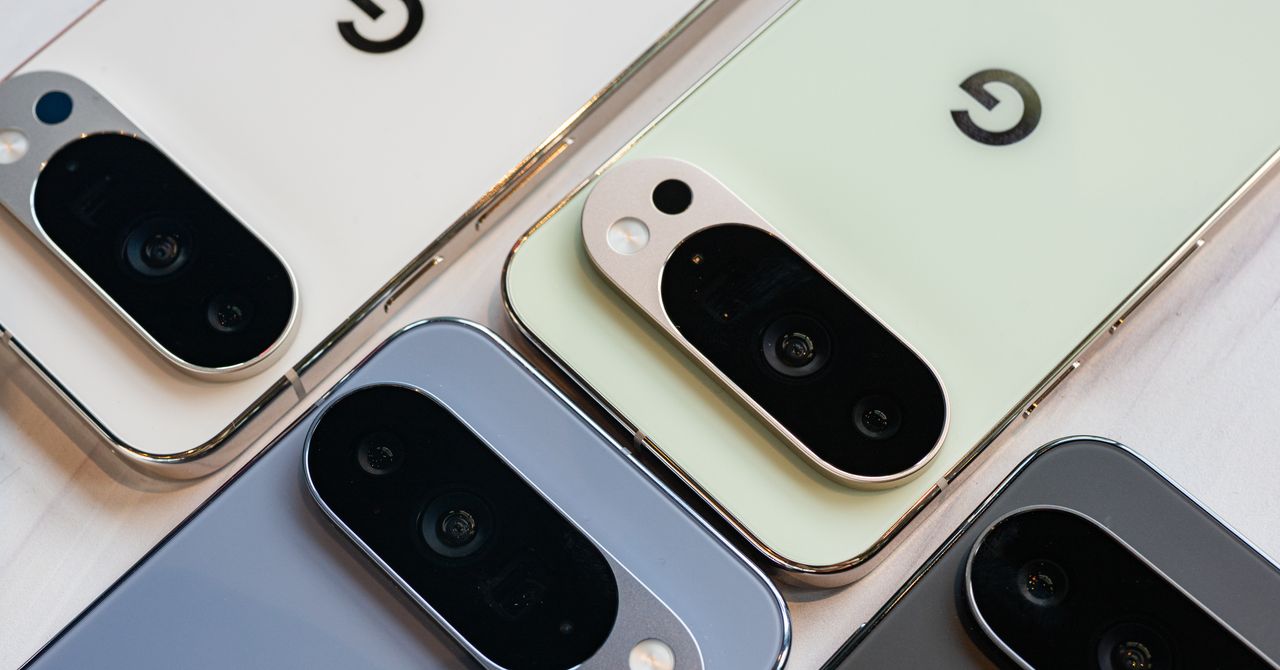
Portrait Light: You can change up the lighting in your portrait selfies after you take them by opening them up in Google Photos, tapping the Edit button, and heading to Actions > Portrait Light. This adds an artificial light you can place anywhere in the photo to brighten up your face and erase that 5 o’clock shadow. Use the slider at the bottom to tweak the strength of the light. It also works on older Portrait mode photos you may have captured. It works only on faces.
Health and Accessibility Features
Cough & Snore Detection (Tensor G2 and newer): On the Pixel 7 and newer, you can have your Pixel detect if you cough and snore when sleeping, provided you place your Pixel near your bed before you nod off. This will work only if you use Google’s Bedtime mode function, which you can turn on by heading to Settings > Digital Wellbeing & Parental Controls > Bedtime Mode.
Guided Frame (Tensor G2 and newer): For blind or low-vision people, the camera app can now help take a selfie with audio cues (it works with the front and rear cameras). You’ll need to enable TalkBack for this to work (Settings > Accessibility > TalkBack). Then open the camera app. It will automatically help you frame the shot.
Simple View: This mode makes the font size bigger, along with other elements on the screen, like widgets and quick-settings tiles. It also increases touch sensitivity, all of which hopefully makes it easier to see and use the screen. You can enable it by heading to Settings > Accessibility > Simple View.
Safety and Security Features
Theft Protection: This is a broader Android 15 feature, but essentially, Google’s algorithms can figure out if someone snatches your Pixel out of your hands. If they’re trying to get away, the device automatically locks. Additionally, with another device, you can use Remote Lock to lock your stolen Pixel with your phone number and a security answer. To toggle these features on, go to Settings > Security & privacy > Device unlock > Theft protection.
Identity Check: If your Pixel detects you’re in a new location, Identity Check will require your fingerprint or face authentication before you can make any changes to sensitive settings, offering extra peace of mind in case you lose your phone or if it’s stolen. You can enable this in Settings > Security & privacy > Device unlock > Theft protection > Identity Check.
Courtesy of Google
Private Space: Another Android 15 addition, Pixel phones finally have a feature that lets you hide and lock select apps. You can use a separate Google account, set a lock, and install any app to hide away. To set it all up, head to Settings > Security & privacy > Private space.
Satellite eSOS (Pixel 9 and Pixel 10 series, excluding Pixel 9a): Like Apple’s SOS feature on iPhones, you can now reach emergency contacts or emergency services even when you don’t have cell service or Wi-Fi connectivity. It’s not just available in the continental US, but also in Hawaii, Alaska, Canada, and even Europe.


Ben Stiller condemns use of ‘Tropic Thunder’ clip in political video

Spain, France lead World Cup 2026 Power Rankings, 100 days out

This Jammer Wants to Block Always-Listening AI Wearables. It Probably Won’t Work

Attock Cement’s acquisition approved | The Express Tribune

India Us Trade Deal: Fresh look at India-US trade deal? May be ‘rebalanced’ if circumstances change, says Piyush Goyal – The Times of India

US arrests ex-Air Force pilot for ‘training’ Chinese military

-
Business1 week ago
India Us Trade Deal: Fresh look at India-US trade deal? May be ‘rebalanced’ if circumstances change, says Piyush Goyal – The Times of India
-
Business1 week ago
Attock Cement’s acquisition approved | The Express Tribune
-

 Fashion1 week ago
Policy easing drives Argentina’s garment import surge in 2025
-
 Politics1 week ago
US arrests ex-Air Force pilot for ‘training’ Chinese military
-

 Politics1 week ago
What are Iran’s ballistic missile capabilities?
-

 Sports1 week ago
LPGA legend shares her feelings about US women’s Olympic wins: ‘Gets me really emotional’
-

 Sports1 week ago
Sri Lanka’s Shanaka says constant criticism has affected players’ mental health
-

 Entertainment1 week ago
Bobby J. Brown, “The Wire” and “Law & Order: SUV” actor, dies of smoke inhalation after reported fire