

Tech
Meet Wukong, the AI Chatbot China Has Installed on Its Space Station


The latest addition to China’s Tiangong space station is an AI chatbot with expertise in navigation and tactical planning. Named Wukong AI—after the protagonist of the “Monkey King” legend in Chinese mythology, Sun Wukong—the chatbot was introduced on the space station in mid-July, and has already completed its first mission: supporting three taikonauts during a spacewalk.
Information about Wukong AI remains limited. Chinese authorities have said that they developed it from a domestic open-source AI model; according to Xinhua, China’s state-run news agency, engineers designed it to meet the requirements of manned space missions, and focused its knowledge-base on aerospace flight data.
“This system can provide rapid and effective information support for complex operations and fault handling by crew members, improving work efficiency, in-orbit psychological support, and coordination between space and ground teams,” Zou Pengfei of the taikonaut training center, told Xinhua.
Technicians connected the AI to Tiangong on July 15. It began providing support a month later, this being the first time that China’s space station has used a large language model (LLM) during in-orbit missions. Wukong AI assisted the crew on a six-and-a-half-hour mission, which involved taikonauts installing space debris protection devices during a spacewalk and performing a routine inspection of the station.
The taikonauts claim that their new assistant “offers very comprehensive content.” Chinese media describe Wukong AI as a classic question-and-answer system divided into two modules: one installed on the station, and one on Earth. The ground module performs in-depth analysis, while the module accompanying the crew solves immediate challenges. The combination of the two creates an advanced assistant capable of adapting to each mission.
Wukong is neither the first AI system in space nor the first on a station. The International Space Station already has Astrobee, a robot that assists astronauts with routine tasks, and CIMON, a conversational psychological support system. The particularity of Wukong AI is that it combines the functions of an intelligent assistant—like those used on Earth—with a total focus on space navigation.
The Tiangong station is the core of China’s strategy to consolidate its position as a space power over the next 30 years. The station currently serves as a microgravity laboratory for experiments that would be impossible on Earth. In the future, China plans to expand it and turn it into an intermediate logistics and training platform between the moon and the Earth’s surface.
And the reason for the AI’s name? Sun Wukong is a mythical person who appears in the classic novel Journey to the West. In China, he symbolizes cunning, adaptability, endurance, and the pursuit of knowledge.
This story originally appeared on WIRED en Español and has been translated from Spanish.







In a time when almost everything is getting more expensive, this deal on the M5 MacBook Air has me hopeful about how laptop pricing will play out the rest of the year. The M5 MacBook Air has dropped back down to $949, which is $150 off its retail price. It’s only been at this price one other time since the product launched in early March and has more consistently sold for $1,049. As someone who’s reviewed every available MacBook and their strongest competitors, I can unequivocally say that this MacBook Air is one of the very best laptop deals right now.
Take the Surface Laptop 7th Edition, for example, which has been one of my favorite alternatives to the MacBook Air through all of 2025. It had been at competitive prices with the M4 MacBook Air all along, with both laptops sometimes dropping to as low as $799 during sales events like Prime Day throughout the year. But now, the Surface Laptop has gotten an official price hike due to the RAM shortage and is currently sitting at $1,200. It’s still a laptop I like quite a lot, but at $350 more than a similarly configured M5 MacBook Air, it’s very difficult to recommend.
Or consider the MacBook Neo, Apple’s new budget laptop that also launched in March. While it’s much cheaper overall, it’s only ever been sold for $10 off its full price. At this reduced price for the M5 MacBook Air of $949, that leaves only a dangerously small $260 gap between the Neo and the Air. It’s almost embarrassing how much better the Air is by comparison—in every way imaginable. If you’re curious how these two laptops stack up, I’ve done a comprehensive comparison between them that’s worth checking out. But to put it simply, despite all the excitement (and controversy) around the much cheaper MacBook Neo, the MacBook Air still has the most price flexibility in terms of deals.
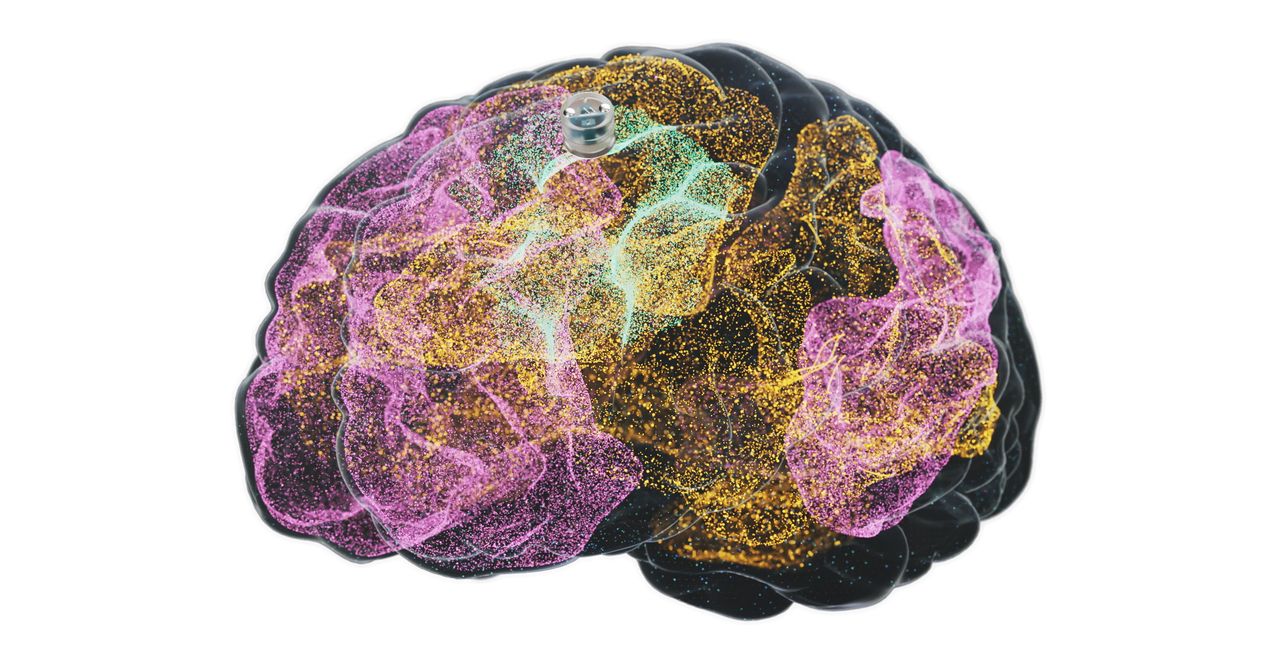
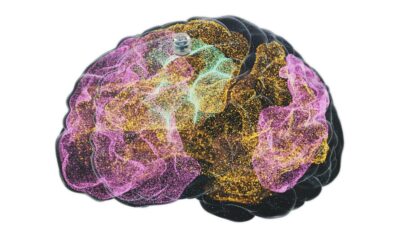
The latest brain-computer interface could help people recover from severe depression. Motif Neurotech announced Monday that the US Food and Drug Administration has approved a human study to trial the company’s blueberry-sized brain implant that sits in the skull and delivers electrical stimulation to treat depression.
The Houston-based startup, founded in 2022, is part of a budding industry pursuing technology to read and interpret brain signals. While other companies exploring similar technology, like Elon Musk’s Neuralink, Paradromics, and Synchron, are developing devices to enable paralyzed people to communicate and use computers, Motif is aiming to ease depression in people who have not benefited from medication.
The company’s device is implanted in the skull just above the dura, the brain’s protective membrane. It targets the central executive network, a part of the brain that is responsible for high-level cognitive functions and is underactive in major depressive disorder. The implant emits specific patterns of stimulation to turn “on” this network.
Motif’s device would allow patients to receive therapeutic brain stimulation at home. “Through frequent electrical stimulation, we think we can drive that neuroplasticity that creates stronger connectivity within the central executive network for patients with depression, so that they can get out of bed in the morning, call their friends, go to the gym,” says Jacob Robinson, Motif’s cofounder and CEO.
Courtesy of Motif
Electrical stimulation has been used for decades to treat depression, and Motif’s approach is just the latest iteration. Electroconvulsive or “shock” therapy began in the 1930s and is still used today in cases where patients don’t benefit from antidepressants. Deep brain stimulation, which involves surgically implanting electrodes into the brain, is occasionally used experimentally but is not FDA approved. A much milder form of stimulation known as transcranial magnetic stimulation, or TMS, was approved in 2008. While it can be highly effective, it typically requires a lengthy treatment regimen of five treatments a week for six weeks.
A study from 2021 found that during a 12-month period in the United States, nearly 9 million adults were undergoing treatment for major depressive disorder, and of those, almost 3 million were considered to have treatment-resistant depression, when symptoms do not improve after at least two, and often more, antidepressant medications.
Motif’s device can be implanted in a 20-minute outpatient procedure without the need for brain surgery. It’s powered by wireless magnetoelectric technology that Robinson developed while at Rice University and is charged with a baseball cap that patients will wear when receiving the stimulation.
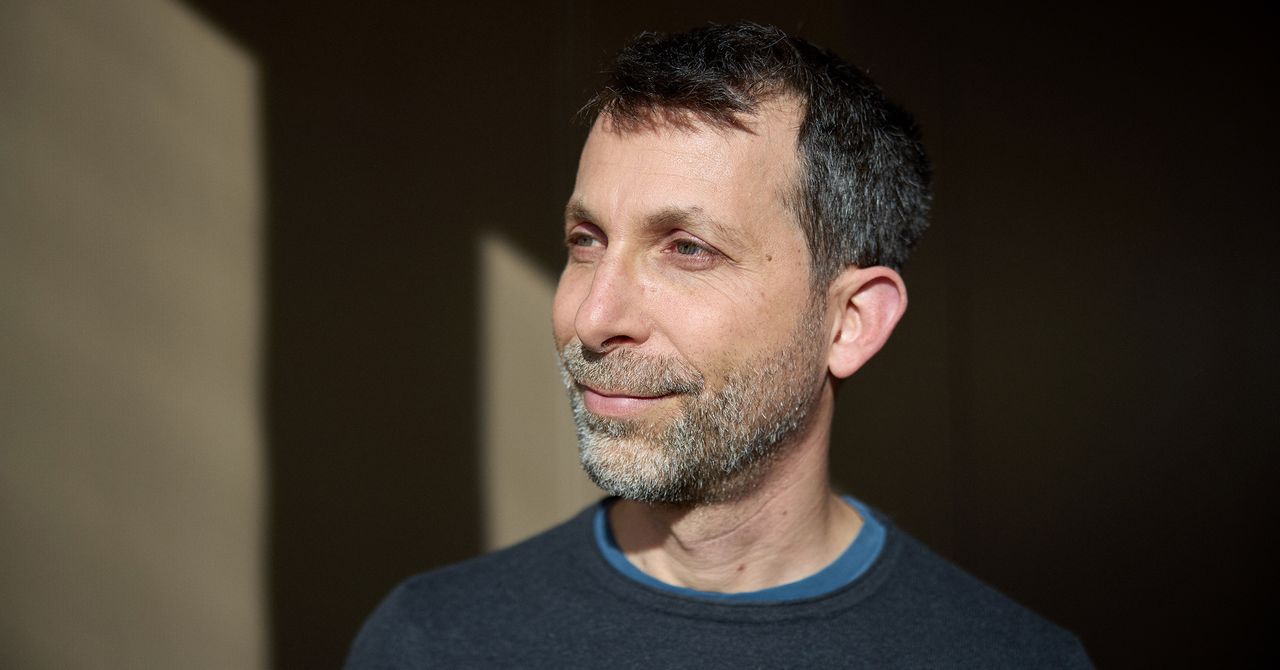
David Silver gave the world its very first glimpse of superintelligence.
In 2016, an AI program he developed at Google DeepMind, AlphaGo, taught itself to play the famously difficult game of Go with a kind of mastery that went far beyond mimicry.
Silver has since founded his own company, Ineffable Intelligence, that aims to build more general forms of AI superintelligence. The company will do this, Silver says, by focusing on reinforcement learning, which involves AI models learning new capabilities through trial and error. The vision is to create “superlearners” that go beyond human intelligence in many domains.
This approach stands in contrast to how most AI companies plan to build superintelligence, by exploiting the coding and research capabilities of large-language models.
Silver, speaking to WIRED from his office in London, says he thinks this approach will fail. As amazing as LLMs are, they learn from human intelligence—rather than building their own.
“Human data is like a kind of fossil fuel that has provided an amazing shortcut,” Silver says. “You can think of systems that learn for themselves as a renewable fuel—something that can just learn and learn and learn forever, without limit,” he says.
I’ve met Silver a few times and—despite this proclamation—he’s always struck me as one of the more humble people in AI. Sometimes, when talking about ideas he considers silly, he flashes a puckish grin. Right now, though, he’s deadly serious.
“I think of our mission as making first contact with superintelligence,” he says. “By superintelligence I really mean something incredible. It should discover new forms of science or technology or government or economics for itself.”
Five years ago, such a mission might have seemed ridiculous. But tech CEOs now routinely talk about machines outpacing human intelligence and replacing entire categories of workers. The idea that some new technical twist might unlock superhuman AI capabilities has recently spawned a raft of billion-dollar startups.
Ineffable Intelligence has so far raised $1.1 billion in seed funding at a valuation of $5.1 billion—an enormous sum by European AI standards. Silver has also recruited top AI researchers from Google DeepMind and other frontier labs to join his endeavor.
Silver says he will give all of the money he makes from equity in Effable Intelligence—a sum that could amount to billions if he is successful—away to charity.
“It’s a huge responsibility to build a company focusing on superintelligence,” he tells me. “I think this is something that has to be done for the benefit of humanity, and any money that I make from Ineffable will will go to high-impact charities that save as many lives as possible.”
Total Focus
Silver met Demis Hassabis, the CEO of Google DeepMind, at a chess tournament when they were kids, and the pair later became lifelong friends and collaborators.
They remained close after Silver left Google DeepMind, which he did only because he wanted to chart a completely new path. “I feel it’s really important that there is an elite AI lab that actually focuses a hundred percent on this approach,” he says. “That it’s not just a corner of another place dedicated to LLMs.”
The limits of the LLM-based approach can be seen, Silver says, with a simple thought experiment. Imagine going back in time and releasing a large language model in a world that believed the world was flat. Without being able to interact with the real world, the system, he says, would remain an avid flat-earther, even if it continued to improve its own code.
An AI system that can learn about the world for itself, however, could make its own scientific discoveries.


‘The Voice’ star Dylan Carter died at 24: Cause of death revealed

‘Euphoria’ star Jessica Blair Herman unveils truth about feud amongst cast

Banks to report all related party forex derivative transactions: RBI – The Times of India

-

 Sports1 week ago
NCAA men’s gymnastics championship: All-time winners list
-

 Sports1 week ago
WWE WrestleMania 42 Night 2: Live match results and analysis
-

 Fashion1 week ago
UK’s Sosandar returns to profitability amid robust FY26 performance
-

 Politics7 days ago
UK’s Starmer seeks to deflect blame over Mandelson appointment
-

 Entertainment1 week ago
Lee Anderson, Zarah Sultana kicked out of UK Parliament for calling PM ‘liar’
-
 Business1 week ago
How Trump’s psychedelics executive order could unlock stalled cannabis reform
-
 Business1 week ago
No fuel shortage: Govt assures 100% domestic LPG, PNG, CNG supply amid Hormuz energy crunch – The Times of India
-

 Sports1 week ago
Quetta Gladiators opt to bowl after winning toss against Peshawar Zalmi in PSL 11 clash