

Tech
Stop Using Your Laptop at the Dinner Table Already


Kristianne Egbert has worked in occupational ergonomics for nearly 20 years and is now a senior corporate ergonomist at Briotix Health, a workplace injury prevention company. Perhaps unsurprisingly, Egbert also says that repeated use of a laptop alone on a desk is going to have a huge effect on your overall posture.
Egbert referred to what’s known as the 20-degree rule. If you’re holding your neck at an angle of 20 degrees or more, you’re officially crossing the risk threshold. “You’re probably bending over because you’re leaning forward to see that screen and be able to reach the keyboard,” she says.
Sitting back farther in your chair might seem like a fix to the problem temporarily, but in reality, bending beyond 20 degrees isn’t the real issue. Most people aren’t comfortable holding that position for long periods of time, which means it’s what else your body does to compensate that’s problematic.
“Nobody really wants to bend their head that much more than 20 degrees,” Egbert says. “So, when you don’t want to bend your neck forward, then the rest of your body is going to try and accommodate.”
You might tilt your whole back forward to avoid that extreme neck posture to type on the keyboard and see the screen of your laptop. That’s where bad posture habits really form. It’s not that you need to just suck it up and have better posture. You need to change the way you’re working, not necessarily your discipline.
“The other thing that ends up happening when your back starts getting tired is you’re like, ‘OK, well, I’m gonna scoot back a little bit to keep my back a little straighter,’” she says, demonstrating the position over the Zoom call. “But then, my arms are going to come out a little bit more, and I’m anchoring my wrist down while I’m typing.” This position can cause all sorts of other problems.
It’s even worse for shorter people, who are often working from chairs that aren’t tall enough. Egbert often recommends putting the laptop down on the lap, so that your arms can be down “where they belong.” You can tilt the laptop screen and look down at it, cutting the risk of leaning forward too much.
What to Do Instead

Fortunately, there are some simple (and even affordable!) solutions to this ergonomic disaster. Both experts I interviewed indicated that your office chair is a good place to start for better posture and office ergonomics. (We have an excellent guide that can help.)










Some Rednote users have reported that their accounts were automatically converted from the Chinese to the international version of the website recently. One American user, who asked to remain anonymous to avoid being punished by the platform, shared a screenshot with WIRED showing that when he logged into the platform in April, a banner appeared that read “Your account is a rednote account. We have automatically redirected you to rednote.com.”
The user says he registered his account with a Chinese phone number years ago, but suspects his account was converted because of using a non-Chinese IP address. “I have never posted from China. It’s always been in the United States. Obviously, in one glance, they can see this is an American posting in English,” he says.
Looming Split
After TikTok sidestepped a US shutdown by selling a majority stake in its American business, most of the “refugees” who had fled to Rednote went back to the video app or to other platforms. Those who stayed often did so because they value reading about and talking directly with Chinese people living in China. They now worry that a corporate split could destroy what had been one of the strongest bridges between the Chinese internet and the wider world.
Jerry Liu, a Vancouver-based TikTok influencer known for sharing funny content about Rednote itself, said in a November video that he was told by staff at the company’s Shanghai office that international users should expect to see less Chinese content and more North American content in the future. “I feel frustrated. I think it’s just gonna be less fun,” he said in the video.
Rednote had tried the TikTok localization playbook before—it launched a slew of regionally focused apps roughly three years ago with names like Uniik, Spark, Catalog, Takib, habU, and S’More that each catered to specific countries outside China, but they failed to catch on. The effort could have been a lesson for the company about the value of its massive Chinese content ecosystem to people in other countries, but as is often the case, regulatory and political considerations appear to have taken priority.
“I don’t want to see Americans talking about Coachella. I did that on Instagram, I didn’t join Xiaohongshu to see Instagram,” says the American user who was recently redirected to Rednote.
Security Concerns
As Rednote goes global, the company is no doubt looking to Chinese predecessors like WeChat and TikTok for ideas about how to navigate the minefield of content moderation and data privacy. So far, its approach looks to more closely resemble that of WeChat.
For over a decade, WeChat has sorted users based largely on one criterion: whether they used a Chinese or a foreign number to sign up. That has allowed users to cross Tencent’s digital border by unlinking and relinking their WeChat accounts to different mobile numbers.
Jeffrey Knockel, an assistant professor of computer science at Bowdoin College, found that Tencent censors content on WeChat and Weixin differently, even though the two platforms are integrated with one another and users can communicate across them. He says Chinese users are subject to a real-time keyword-matching filter to censor politically sensitive speech, but “if you registered for WeChat using a Canadian or an American phone number, your messages aren’t necessarily under that kind of censorship.”
Knockel says WeChat’s blended content moderation approach may have made some people wary about using the app. “Users are generally distrustful of the platform. They don’t know if they’re being watched and censored,” he says. As Rednote moves in a similar direction, it will be worth watching whether international audiences end up having similar misgivings.
This is an edition of Zeyi Yang and Louise Matsakis’ Made in China newsletter. Read previous newsletters here.

If there was any doubt, AI mania was on full display at Google Cloud Next in Las Vegas this week, but history shows us that when humans start getting manic about things, it doesn’t always work out great.
Lately, I’ve seen a few commentators bringing up the horrible story of the radium girls to try to make this point. Have you ever heard of them? They were factory workers of the 1920s hired to paint watch faces with newfangled luminous paint containing deadly radium.
The camel hair paintbrushes the workers used lost their shape after a few brush strokes so they were encouraged to reshape the brushes by licking the tips. Many of the workers also used the paint as lipstick or nail polish, because why not?
This did not go well for anybody involved. Many radium girls experienced dental issues, lost teeth, and suffered oral lesions and ulcers. Others developed anaemia and necrosis of the jaw. Some experienced disruption to their menstrual cycles or were even rendered sterile.
At least 50 women died prematurely as a result.
This wasn’t the only misuse of radium. In a short-lived mania for the radioactive metal – first discovered by Marie and Pierre Curie in 1898 – humans also put it in toothpaste, hair cream, and a medicinal tonic drink called Radithor. Doctors even used it to try to treat cancer.
AI is manifestly not a radioactive element but there are clear parallels between its widespread application and the reckless use of radium a century ago. And I believe there is a warning here for us, or a lesson if we care to hear it; we need to figure AI out before we do something really dumb.
Put your hands in the air, the use cases aren’t there
Just look at the application of AI to the ‘creation’ of art and music and other forms of self-expression. Here, take-up has become so pervasive that the well of human creativity, perhaps our most awesome trait, is rapidly being poisoned with utter slop.
As a case in point, ahead of the opening keynote at Google Cloud Next, 32,000 humans and a handful of AIs were treated to a Google Gemini-enhanced DJ set accompanied by AI-generated visuals created by the complex ‘art’ of waving your hands about in midair.
To be fair to the performers, the results were quite impressive and the audience was bopping along.
But it’s worth a sidenote that Italian DJ Robert Miles created his breakthrough 1995 track Children using nothing more than a Korg 01/W FD synthesiser, its 16’ Piano patch, and his own skill.
My point is that Children remains an iconic piece of genre-defining ‘90s dance music, but nobody in the Google audience will be able to hum today’s set in 30 years’ time.
Next, in a demonstration of the power of Google’s Gemini Agent Platform – officially unveiled at the show – Google Cloud’s Erica Chuong, manager for applied AI forward deployed engineering, designed a ground-up interior design campaign for a fictional furniture company that had found itself lumbered with dead stock that nobody wants.
Analysing current ‘modern organic’ interior design trends the agent designed a campaign for Chuong where relevant dead stock was repriced to undercut the competition and created a series of videos showing off its flair for interior design.
Unfortunately for the agent the result was a banal and unimaginative sofa and coffee table combo dominated by dull neutral tones and devoid of personality. It would have looked okay in a Travelodge lobby.
In a world where interior design trends are being dictated by consumers asking their AI assistants about the latest interior design trends while interior designers ask their AI agents what interior design trends consumers are into, you may be wondering how any new information about interior design trends gets into this loop. If you find out how, please let someone at Computer Weekly know.
But at this point, the AI cat is not only out of the bag, it’s on top of your living room shelves knocking over your good wine glasses. Three quarters of Google Cloud customers already leverage Google’s AI, says CEO Thomas Kurian. “You have moved beyond the pilot, the experimental phase is behind us and now the real challenge begins,” he told the audience.
Moving AI into production of course needs a unified stack and happily for Google Cloud, right on cue, here comes a Google-branded one. As Google iterates its tensor processing units (TPUs) at an ever-increasing pace, it also comes with a whole new chipset, TPU 8i to support inference and TPU 8t to run training.
Lest his existence be forgot during the love-in, Kurian’s boss, Google and Alphabet CEO Sundar Pichai, appeared on a big screen to tell everyone how glad he was that they were in Las Vegas even though he hadn’t made the trip himself, and revealed just how much money – almost two hundred billion dollars – Google will spend on capex investment in innovation this year, a good portion of it to the cloud unit and much of it supporting AI.
“We are more on the front foot than ever before,” remarked Pichai. “We are moving in a bold and responsible way.”
So if that’s true, where are the bold and responsible use cases? Do they even exist? Or are they just the usual conference waffle? I went looking.
Resident agents
Resident Evil developer Capcom says it is using Google Cloud to enhance its videogame development processes, not by taking over the creativity but by enabling creatives to be creative.
A big challenge for videogame developers is playtesting their products prior to release, and as their properties grow in scale – many now encompass vast digital worlds with unthinkable numbers of permutations – the strain on developers has ramped up, big time, leading to a phenomena known as defensive development.
Defensive development is a situation where the cost of making technical changes to an in-progress project gets so high that the human engineers feel pressurised to prioritise maintenance over innovation. In gaming this often occurs late in the production cycle, leading to problems with titles being released that seem, well, unfinished in some way.
It’s not an issue that’s unique to companies like Capcom, though. Take the manufacturing sector, where facility managers might see similar challenges when trying to simulate how a hardware update will work within their current procedures, or in retail, where logistics experts must navigate dynamic data reserves when trying to optimise supply chains without disrupting their current inventory systems.
Working with Google Cloud, Capcom has now launched an in-house agentic platform that not only relieves some of this burden but also serves as a blueprint for where AI might be used better in the creative sector, and others.
It describes its approach as a multimodal workbench, and at its core, it comprises a small group of distinct agents that optimise the playtesting process using vision and reasoning to understand the intent of a system.
The first of these, the visual inspection agent, uses Gemini Vision to look at the screen through near-human eyes, working out what is an intentional design choice and what is a technical failure.
The second, the predictive agent, pores over historical data to work out where a system might break next and directs a mini army of test bots to ‘swarm’ high-risk areas, rather than testing randomly.
The third, the institutional knowledge agent, enables new team members, human ones, to learn how their colleagues or predecessors worked similar problems before, preserving decades of expertise – three of them in the case of the Resident Evil franchise.
The fourth, the data inefficiency agent, spots inefficiencies within datasets to optimise overall game performance. Developers can query it to help summarise complex technical logs and make more advanced data more widely available to their teams.
Data inefficiency agents: These agents identify inefficiencies within massive datasets to optimize game performance. Developers can query their AI teammates to receive summaries of complex technical logs, making advanced development data accessible to all team members.
Collectively, Capcom’s agents are now running for 30,000 human hours every month and the firm’s developers say they now feel empowered to focus on higher value creative tasks, while Google Cloud, for its part, says that many of the tasks the agents are performing have applications in many other industries.
Citi Sky lines up
Elsewhere, Citi Wealth, the wealth management arm of Citibank parent Citigroup, unveiled an AI team member called Citi Sky, which it says will help reshape how its clients access market insights, act on potential opportunities, and work with their human financial advisors. Bilingual in English and Spanish, in time it will be integrated into Citi Wealth’s platforms – although in the US only for now.
Citi head of wealth, Andy Sieg, said that for decades, managing your financial life has meant navigating calls, meetings, and more recently apps. With the new agentic service, you simply ask and then act. It’s a shift from interface to intelligence and transactions to outcomes, he says, with a universal question at the centre: am I financially okay?
Citi Sky will answer this question in real time, marrying insight and execution simply and clearly – not replacing human advisors, but extending their reach and deepening their impact. In fact, Citi Wealth plans to hire advisors in the years ahead.
For Citi Wealth as a business, Sieg says the goal is to unlock massive scale and apply basically unlimited cognitive resources to its clients. “And the real need that we’ve met … is creating a relationship that can evoke the same kind of trust, we believe, that clients have with their human financial advisors,” he says.
Citi Wealth invoked Google’s full AI stack to build Sky, from Google Cloud infrastructure to Google DeepMind and, of course, Gemini models running on Gemini Enterprise Agent Platform. It worked closely with both teams to incorporate DeepMind’s real-time avatar technology and Gemini’s live application programming interface (API) to solve challenges around providing low-latency audio and video conversations.
A plea for rational thinking
I must acknowledge that Google Cloud’s customer stories are carefully curated by its communications teams – not every customer wants to talk, some will be forbidden from doing so, even more are still shivering on the edge of the pool with their inflatable armbands on, too scared to jump in.
And to be blunt, some customers will be at the deep end doing really stupid things with AI that will blow up in their faces.
But in the examples of Capcom and Citi Wealth – and others that would have pushed the word count unreasonably high – I think there is some hope.
With forethought – not even very much of it – and a rational head, we can turn AI loose on both the small challenges we face in our daily lives, and the grand challenges we face collectively.
But to do this we need to resist the advances of the snake oil salesmen, the charmers and grifters, and especially the tech bros who want to disrupt something that doesn’t need disrupting, like the habit of art, for the sake of making themselves richer.
And I fear we may be running out of time to do so.
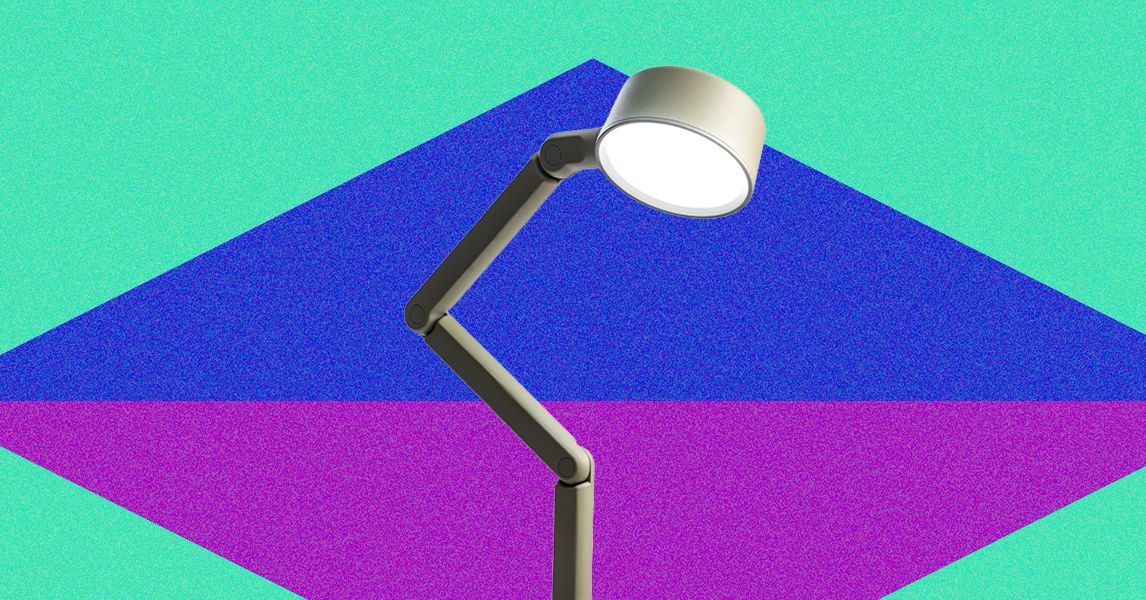
The base of the lamp has two slider buttons. One toggle adjusts the warmth, from cold white light all the way to red. One adjusts the intensity, from ultra-bright down to a glareless glow. Hard taps on each button skip ahead, while holding the toggle down on one side or another adjusts the light settings quite slowly—slowly enough I at first sometimes question whether it’s happening.
The maximum brightness is 1,000 lumens—the approximate intensity of a 75-watt incandescent bulb. At this brightness, the battery lasts about five hours. At a lower intensity, this can extend to as long as a dozen hours.
Red Shift
Photograph: Matthew Korfhage
There’s an added feature I have come to appreciate at night, which is the red-light mode. There’s little evidence that blue light from your little smartphone is keeping you awake at night. But numerous studies do show that blue light wavelengths can affect melatonin levels and thus your body’s circadian rhythm, while red light doesn’t do this.
Red light therapy is, of course, the province of TikTok as much as science—a field where wild exaggerations live alongside legitimate uses and benefits. For every sleep study showing that red light is superior to blue light when it comes to melatonin levels, there’s another showing that red light is associated with “negative emotions” before bed.
So I can only offer my own experience, which is that Edge Light Go’s red reading light offers me a pleasant liminal space between awake time and sleepy time, one not offered by a basic nightstand lamp. It allows me to sort of bask in a darkroom space that still lets me see and read, and drift off a little easier.
If I fall asleep, the light has an automatic 25-minute shut-off, which means I won’t do what I far too often do, which is drift off while reading and then wake up, alarmed, to a room filled with bright light in the middle of the night.
Caveats and Quirks

Photograph: Matthew Korfhage
This said, for all the virtues of portability, the Edge Light Go does not boast a base that’s heavy enough to stop the lamp from tipping over if I bend it forward from its lowest hinge. This can be an annoyance when trying to use the lamp as a reading light from a bedside table or the arm of a couch.


Italy rejects proposal to replace Iran at 2026 World Cup: ‘You qualify on pitch’

Yankees owner Hal Steinbrenner considering factors before debuting new alternate uniforms: report

Nike cuts 1,400 roles in second round of layoffs this year

-

 Fashion1 week ago
France’s LVMH Q1 revenue falls 6%, shows resilience amid Iran war
-

 Entertainment1 week ago
Is Claude down? Here’s why users are seeing errors
-

 Sports1 week ago
PSL 11: Peshawar Zalmi win toss, opt to field first against Quetta Gladiators
-

 Tech1 week ago
The Deepfake Nudes Crisis in Schools Is Much Worse Than You Thought
-
 Business1 week ago
Standard Life buys rival in £2b deal to create savings giant
-

 Tech1 week ago
CYBERUK ’26: UK lagging on legal protections for cyber pros | Computer Weekly
-

 Fashion1 week ago
Raymond unveils luxury Chairman’s Collection Store in Mumbai
-
 Business1 week ago
PepsiCo earnings beat estimates as North American food business improves