

Tech
How to land your next tech role – six top tips | Computer Weekly


The tech recruitment market has become more challenging for individuals over the last couple of years as economic and wider conditions have changed. Employers have had to deal with an array of issues including rising costs through higher inflation, geopolitical uncertainties, trade tariffs in the US, and increasing employment costs in the UK. As a result, some businesses have reined in on their hiring and in some cases have looked to move more roles offshore. This has led to more tech professionals hunkering down in their present roles – staying put for longer than might normally be the case. With less movement in the market, there are fewer new roles coming through.
However, it is also true that there are definite hotspots and areas of high demand such as software development, big data, and cybersecurity. Across all of these, professionals with proven experience utilising AI are especially sought after.
In short, although conditions have tightened and competition for the best roles is fierce, there are still opportunities out there. So, how can candidates maximise their chances of landing that next tech role? Based on my experience filling a wide range of tech roles at businesses across sectors, here are six key tips.
Specialise – In a tighter market, specialists are in a better place than generalists. Employers are looking for candidates who precisely meet their needs. The more you can build up a set of specialisms – in Azure, for example, or Java coding, or machine learning – the more attractive you will be for certain roles. Specialisation also applies on a sectoral basis. Companies look for individuals with proven experience in their sector. To a bank, for example, someone who is working at another financial institution will instantly be of more interest than someone working in a leisure business or a manufacturer. Build up your practice area and sectoral specialisms.
Build longevity – A career history with a smaller number of longer held roles is more attractive to an employer than someone who has moved around quickly multiple times. Even on the contractor side, employers will look to see whether you’ve had your contract extended and have stayed beyond the minimum term. Lack of longevity in previous roles is in fact one of the most common reasons I’m given by employers when rejecting a candidate. Try not to jump around – think longer term.
Keep your profile updated – It’s really essential to keep your LinkedIn profile (and profiles on other channels) up-to-date. Employers and recruiters will almost always look at your profile after receiving an application, and they often use keyword searches on platforms like LinkedIn too. Make sure your profile includes your key skills, experience and qualifications and think about what keywords someone searching for someone like you would use. It’s a constant source of surprise to me how many candidates don’t keep their information current and updated.
Don’t spam apply – It’s tempting when you really want to find a new role to fire off as many applications as you can. But a ‘spray and pray’ approach really doesn’t work. Most of your applications are almost certainly not going to be proper fits. Find roles that you really are qualified and suited for, and concentrate on those. I sometimes have candidates who apply for every single role I’m trying to fill, tweaking their CV or application each time. This is a major red flag. You can’t be a software developer one day, then a data architect the next. It’s a problem that’s being exacerbated by AI – which I’ll discuss in my next tip.
Make proper use of AI – Without doubt, AI is changing the game. It can be a fantastic support tool to job seekers – helping you find roles, polish your CV to highlight key strengths and areas of fit, and even prepare for interviews by finding key information or anticipating questions you may be asked. However, AI should really be that – a support tool – rather than a substitute for you putting in the effort and thinking yourself. For example, increasing numbers of people seem to be entirely re-writing their CVs with AI – but the result is usually a formulaic document with stilted language and standard layouts that doesn’t impress. It usually stands out a mile and puts most employers/recruiters off. More people are also using AI to help them spam apply for scores of roles, flooding employers and recruiters and simply being counter-productive. Use AI as a targeted productivity tool that helps you improve and sharpen your applications. Also make sure to highlight your experience using AI in your work – this is something increasingly being looked for, especially in roles like coding and software engineering.
Build relationships – Although there is an increasing degree of automation in areas like candidate screening, recruitment remains a people business. Reach out to recruiters, and potentially to internal hiring teams at companies you’re interested in, to establish a relationship where possible. Offer to meet or chat via video/phone. Try to build a rapport. Recruiters are much more likely to put forward or recommend people they have met (and were impressed by) than others where the relationship is only remote. Again, don’t overdo this by spam contacting recruiters asking to meet. Identify the best fits based on advertised roles and try to create a handful of good contacts that might pay off in the future.
Other important points are fairly self-evident: prepare well for interviews and make sure you understand both the role and the company; don’t make unreasonable salary/day rate/benefit demands; if unsuccessful, try to obtain feedback that you can learn from and adjust next time.
Another area I’m often asked about is courses and certifications. Is it worth investing in these? The answer is that it can be essential for some roles such as those specialising in vendor platform technologies like Salesforce or Workday – certifications here are a pre-requisite. Beyond that, however, I would say that they are a nice-to-have which may strengthen your application in some cases – but certifications and courses will always be trumped by real-world experience of a technology or application.
Back yourself
Ultimately, employers are looking for proven experience in a similar role at another organisation in the same or similar industry. That’s quite a long ask-list. But it’s a reflection of how the market is. That doesn’t mean you can’t land that next role you’re dreaming about – but you’ll probably need patience, stamina and commitment to get there. Believe in yourself, take a systematic approach and don’t be put off if you don’t succeed straightaway: talent will eventually rise to the top.
Alexander Reeder is managing consultant at Harvey Nash
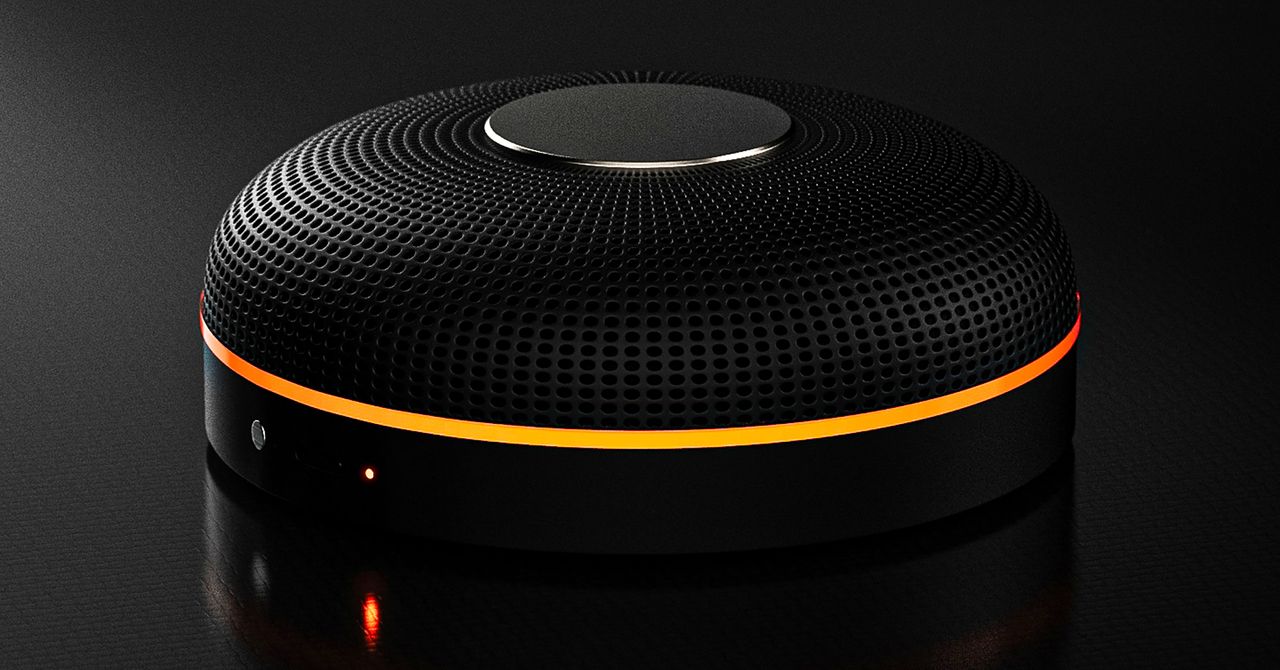
Deveillance also claims the Spectre can find nearby microphones by detecting radio frequencies (RF), but critics say finding a microphone via RF emissions is not effective unless the sensor is immediately beside it.
“If you could detect and recognize components via RF the way Spectre claims to, it would literally be transformative to technology,” Jordan wrote in a text to WIRED after he built a device to test detecting RF signatures in microphones. “You’d be able to do radio astronomy in Manhattan.”
Deveillance is also looking at ways to integrate nonlinear junction detection (NLJD), a very high-frequency radio signal used by security professionals to find hidden mics and bugs. NLJD detectors are expensive and used primarily in professional contexts like military operations.
Even if a device could detect a microphone’s exact location, objects around a room can change how the frequencies spread and interact. The emitted frequencies could also be a problem. There haven’t been adequate studies to show what effects ultrasonic frequencies have on the human ear, but some people and many pets can hear them and find them obnoxious or even painful. Baradari acknowledges that her team needs to do more testing to see how pets are affected.
“They simply cannot do this,” engineer and YouTuber Dave Jones (who runs the channel EEVblog) wrote in an email to WIRED. “They are using the classic trick of using wording to imply that it will detect every type of microphone, when all they are probably doing is scanning for Bluetooth audio devices. It’s totally lame.” Baradari reiterates that the Spectre uses a combination of RF and Bluetooth low energy to detect microphones.
WIRED asked Baradari to share any evidence of the Spectre’s effectiveness at identifying and blocking microphones in a person’s vicinity. Baradari shared a few short videoclips of people putting their phones to their ears listening to audioclips—which were presumably jammed by the Spectre—but these videos do little to prove that the device works.
Future Imperfect
Baradari has taken the critiques in stride, acknowledging that the tech is still in development. “I actually appreciate those comments, because they’re making me think and see more things as well,” Baradari says. “I do believe that with the ideas that we’re having and integrating into one device, these concerns can be addressed.”
People were quick to poke fun at the Spectre I online, calling the technology the cone of silence from Dune. Now, the Deveillance website reads, “Our goal is to make the cone of silence become reality.”
John Scott-Railton, a cybersecurity researcher at Citizen Lab, who is critical of the Spectre I, lauded the device’s virality as an indication of the real hunger for these kinds of gadgets to win back our privacy.
“The silver lining of this blowing up is that it is a Ring-like moment that highlights how quickly and intensely consumer attitudes have shifted around pervasive recording devices,” says Scott-Railton. “We need to be building products that do all the cool things that people want but that don’t have the massive privacy- and consent-violation undertow. You need device-level controls, and you need regulations of the companies that are doing this.”
Cooper Quintin, a senior staff technologist at the Electronic Frontier Foundation, echoed those sentiments, even if critics believe Deveillance’s efforts to be flawed.
“If this technology works, it could be a boon for many,” Quintin wrote in an email to WIRED. “It is nice to see a company creating something to protect privacy instead of working on new and creative ways to extract data from us.”
Portrait Light: You can change up the lighting in your portrait selfies after you take them by opening them up in Google Photos, tapping the Edit button, and heading to Actions > Portrait Light. This adds an artificial light you can place anywhere in the photo to brighten up your face and erase that 5 o’clock shadow. Use the slider at the bottom to tweak the strength of the light. It also works on older Portrait mode photos you may have captured. It works only on faces.
Health and Accessibility Features
Cough & Snore Detection (Tensor G2 and newer): On the Pixel 7 and newer, you can have your Pixel detect if you cough and snore when sleeping, provided you place your Pixel near your bed before you nod off. This will work only if you use Google’s Bedtime mode function, which you can turn on by heading to Settings > Digital Wellbeing & Parental Controls > Bedtime Mode.
Guided Frame (Tensor G2 and newer): For blind or low-vision people, the camera app can now help take a selfie with audio cues (it works with the front and rear cameras). You’ll need to enable TalkBack for this to work (Settings > Accessibility > TalkBack). Then open the camera app. It will automatically help you frame the shot.
Simple View: This mode makes the font size bigger, along with other elements on the screen, like widgets and quick-settings tiles. It also increases touch sensitivity, all of which hopefully makes it easier to see and use the screen. You can enable it by heading to Settings > Accessibility > Simple View.
Safety and Security Features
Theft Protection: This is a broader Android 15 feature, but essentially, Google’s algorithms can figure out if someone snatches your Pixel out of your hands. If they’re trying to get away, the device automatically locks. Additionally, with another device, you can use Remote Lock to lock your stolen Pixel with your phone number and a security answer. To toggle these features on, go to Settings > Security & privacy > Device unlock > Theft protection.
Identity Check: If your Pixel detects you’re in a new location, Identity Check will require your fingerprint or face authentication before you can make any changes to sensitive settings, offering extra peace of mind in case you lose your phone or if it’s stolen. You can enable this in Settings > Security & privacy > Device unlock > Theft protection > Identity Check.
Courtesy of Google
Private Space: Another Android 15 addition, Pixel phones finally have a feature that lets you hide and lock select apps. You can use a separate Google account, set a lock, and install any app to hide away. To set it all up, head to Settings > Security & privacy > Private space.
Satellite eSOS (Pixel 9 and Pixel 10 series, excluding Pixel 9a): Like Apple’s SOS feature on iPhones, you can now reach emergency contacts or emergency services even when you don’t have cell service or Wi-Fi connectivity. It’s not just available in the continental US, but also in Hawaii, Alaska, Canada, and even Europe.

Portrait Light: You can change up the lighting in your portrait selfies after you take them by opening them up in Google Photos, tapping the Edit button, and heading to Actions > Portrait Light. This adds an artificial light you can place anywhere in the photo to brighten up your face and erase that 5 o’clock shadow. Use the slider at the bottom to tweak the strength of the light. It also works on older Portrait mode photos you may have captured. It works only on faces.
Health and Accessibility Features
Cough & Snore Detection (Tensor G2 and newer): On the Pixel 7 and newer, you can have your Pixel detect if you cough and snore when sleeping, provided you place your Pixel near your bed before you nod off. This will work only if you use Google’s Bedtime mode function, which you can turn on by heading to Settings > Digital Wellbeing & Parental Controls > Bedtime Mode.
Guided Frame (Tensor G2 and newer): For blind or low-vision people, the camera app can now help take a selfie with audio cues (it works with the front and rear cameras). You’ll need to enable TalkBack for this to work (Settings > Accessibility > TalkBack). Then open the camera app. It will automatically help you frame the shot.
Simple View: This mode makes the font size bigger, along with other elements on the screen, like widgets and quick-settings tiles. It also increases touch sensitivity, all of which hopefully makes it easier to see and use the screen. You can enable it by heading to Settings > Accessibility > Simple View.
Safety and Security Features
Theft Protection: This is a broader Android 15 feature, but essentially, Google’s algorithms can figure out if someone snatches your Pixel out of your hands. If they’re trying to get away, the device automatically locks. Additionally, with another device, you can use Remote Lock to lock your stolen Pixel with your phone number and a security answer. To toggle these features on, go to Settings > Security & privacy > Device unlock > Theft protection.
Identity Check: If your Pixel detects you’re in a new location, Identity Check will require your fingerprint or face authentication before you can make any changes to sensitive settings, offering extra peace of mind in case you lose your phone or if it’s stolen. You can enable this in Settings > Security & privacy > Device unlock > Theft protection > Identity Check.
Courtesy of Google
Private Space: Another Android 15 addition, Pixel phones finally have a feature that lets you hide and lock select apps. You can use a separate Google account, set a lock, and install any app to hide away. To set it all up, head to Settings > Security & privacy > Private space.
Satellite eSOS (Pixel 9 and Pixel 10 series, excluding Pixel 9a): Like Apple’s SOS feature on iPhones, you can now reach emergency contacts or emergency services even when you don’t have cell service or Wi-Fi connectivity. It’s not just available in the continental US, but also in Hawaii, Alaska, Canada, and even Europe.


Holly Willoughby spotted with Nicole Appleton as she prepares for Youtube comeback

Want To Buy A House In Karnataka? Know About The ‘Namma Mane’ Scheme With Affordable Housing & Subsidies

South Korea’s apparel imports slightly lower at $1 billion in January

-
 Business1 week ago
Attock Cement’s acquisition approved | The Express Tribune
-

 Fashion1 week ago
Policy easing drives Argentina’s garment import surge in 2025
-

 Politics1 week ago
What are Iran’s ballistic missile capabilities?
-
 Business1 week ago
India Us Trade Deal: Fresh look at India-US trade deal? May be ‘rebalanced’ if circumstances change, says Piyush Goyal – The Times of India
-

 Sports1 week ago
LPGA legend shares her feelings about US women’s Olympic wins: ‘Gets me really emotional’
-

 Fashion1 week ago
South Korea’s Misto Holdings completes planned leadership transition
-

 Entertainment1 week ago
Bobby J. Brown, “The Wire” and “Law & Order: SUV” actor, dies of smoke inhalation after reported fire
-

 Fashion1 week ago
Texwin Spinning showcasing premium cotton yarn range at VIATT 2026