

Tech
I’m a Smart-Home Addict, and These Are My Favorite Smart Displays

Comparing Our Favorite Smart Displays
More Smart Displays We Like
Echo Hub for $180: The Echo Hub isn’t exactly a smart display. It lacks powerful speaker capabilities and doesn’t have a camera for calls or Amazon’s Drop-In video call feature. Instead, it focuses entirely on being a smart home dashboard with built-in Alexa, plus features like widgets and the photo frame. I think it takes the best, most easily used features of a smart display and cuts out the rest. But if you want a good speaker, don’t choose this one.
Echo Show 5 (3rd Gen, 2023) for $90: The smaller and cheaper third-gen Echo Show 5 has a 5.5-inch screen that works best on a desk or a bedside table. We think it’s a bit too small for the kitchen or living room, but that depends on how you plan to use it.
Echo Show 15 for $300: This is the largest of them all, with a 15.6-inch display, and it has customizable widgets so you can have smart-home device controls and calendar reminders available whenever. It’s made to be mounted on your wall like a TV (a stand is sold separately), and the Show 15 pairs with a Fire TV remote (you can use the app) to use the streaming features. With the new Alexa+ I’ve found myself liking it a lot more, and it’s much less distracting than the rotating slideshows you get on smaller Echo Shows. It’s a splurge, though, and I still wish the streaming capabilities were better.
Google Nest Hub for $100: Google’s second-gen Nest Hub is a great option if you don’t need a camera and don’t mind a smaller 7-inch screen. It has a wake-up alarm that emulates the rising sun for gentler mornings, though it’s not bright enough to qualify as a sunrise alarm clock. It also has sleep-tracking tech to track your sleep quality, though the quality of the results isn’t great. It also supports gestures—like playing or pausing a video with a hand movement—by using unique radar tech.
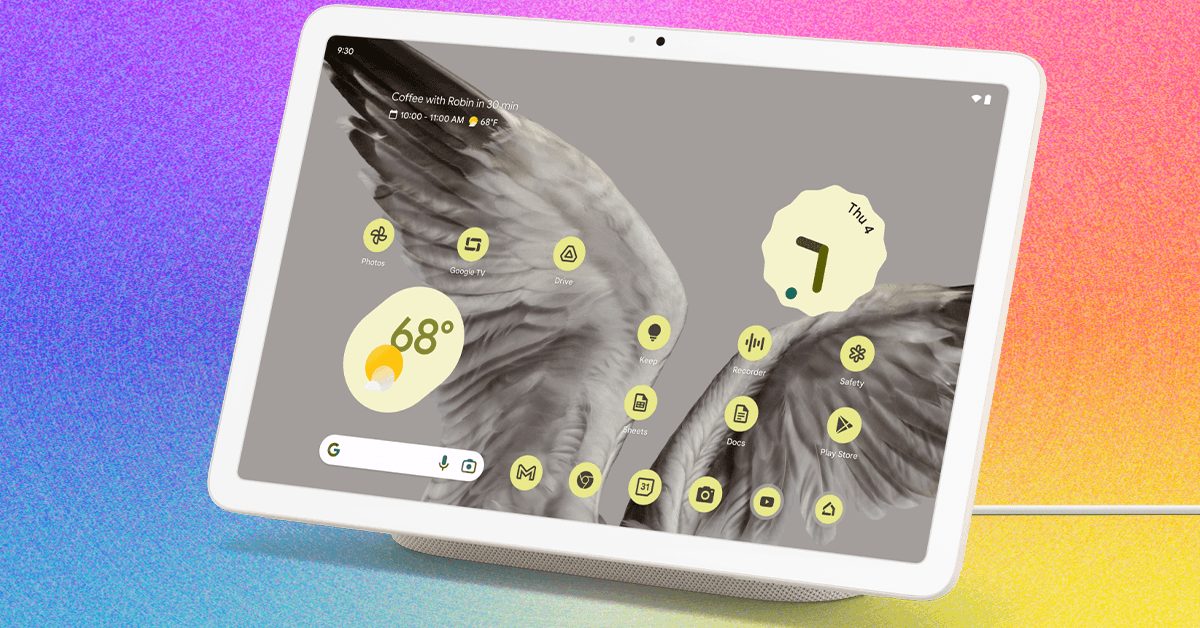
Google Pixel Tablet for $499: This tablet doubles as a smart speaker when placed on its speaker dock. It works well, but it’s not currently slated to get Google’s new assistant, Gemini for Home. If that changes, we’ll go back to recommending it. But we’re not sure it will: availability has been limited for the speaker base, and could point to this device being discontinued altogether.
Smart Displays to Skip
We don’t like every smart display. Here are the ones we’re skipping after trying them out.
Echo Show 10 (3rd Gen, 2021) for $250: This smart display is situated on top of a large cylindrical speaker, which makes it sound great. The screen physically swivels to follow you around the room as you use it, keeping you in frame while you video chat or keeping your streamed workout video in your line of sight as you move about. Because the screen moves around so much, you may have trouble positioning it in tighter spaces—especially in corners. It’s a unique model, and is still out of stock like it was this summer. I suspect the upcoming new Echo Show 11 ($220) might replace it, since it has a similar design (but leaves out the movement gimmick).
Third-Party Google Displays: Google is no longer updating software for some of the third-party smart displays we used to recommend in this guide. If you have one, it will still work, but some features will likely suffer or disappear entirely as time passes. This seems to be the fate of most third-party Google smart displays, which is why we don’t recommend them anymore. Google did say they’ll be working with partners to bring Gemini for Home to third-party devices, so we’ll see how that pans out.
What About Alexa+ and the New Echo Shows?
Amazon has been randomly rolling out its new version of Alexa, named Alexa+, in early access since the spring. This second generation of the Alexa voice assistant is more conversational, able to execute complex tasks and learn new information, and can be much more personalized. That’ll be due to its being powered by generative AI. Check out our hands-on with early access Alexa+ for more more about our experience.
Unlike the current Alexa, once it’s fully available, it’ll cost $20 a month or be free if you have an Amazon Prime membership. This is a big jump from the free assistant, but you can keep the current Alexa for free if you don’t wish for another subscription or have an Amazon Prime membership. Right now, it’s also only available in early access for Echo Show devices. You can sign up here for the wait list.
Alexa+ will be immediately available on its newest devices coming this fall, however. There will be two new smart displays, the Echo Show 8 (4th Gen) and Echo Show 11, and two new smart speakers, the Echo Dot Max and Echo Studio (2nd Gen). We’re curious how the new models will compare to our current favorites, and we will update this guide once we test them.
It’s also important to note that Alexa+ has forced a privacy change for all Echo devices. Echo devices used to be able to process voice recordings locally on your device, but the “Do Not Send Voice Recordings” privacy feature was killed in March. Now all voice recordings will be sent to Amazon to be processed in order to make Alexa+ function, but even if you don’t end up using Alexa+, the feature is gone.
What About Gemini for Home and Google’s Smart Displays?
Amazon isn’t the only one rolling out a new version of its assistant. Gemini for Home is Google’s similarly AI-powered smart assistant that will replace Google Assistant in just about all of its available speakers. Unlike Amazon’s new assistant, Gemini for Home will be free, but Google is changing its Nest Aware subscription to become a subscription that’s both for video storage and for more powerful assistant features.
Google is also rolling out a new speaker in the spring, but no new smart display is slated yet. The new assistant will come to all of Google’s existing lineup except for the Google Pixel Tablet, which we no longer recommend since it’s not currently planned to get support with the new assistant. Google did say they plan to work with third-party partners to bring Gemini for Home to more devices, so we might see new third-party displays that we can recommend again. We’ll update this guide as we learn more, but for now, Google’s Nest Hub Max and Nest Hub are the best smart displays to purchase if you want access to Google’s new assistant.
FAQs
Do You Need a Smart Display?
Smart displays are helpful, acting as hubs for your smart home devices, walking you through recipes while you chop away in the kitchen, and in some cases allowing you to video chat hands-free too. But we’re not sure how long they’ll be worth it, or even exist, in their current form. Companies have been experimenting and doing away with smart displays again and again; Meta discontinued its Portal devices, Google might be discontinuing the Pixel Tablet we favored, and Apple still has yet to even make a smart display.
Amazon has continued to make new smart displays, even after losing $10 billion in 2022 thanks to failures around the Alexa voice assistant. The Alexa team was reportedly hit hard by layoffs in 2022 and 2023, but new smart displays continued to come out since then and more are slated to come out later this fall: the Echo Show 8 (4th Gen) and Echo Show 11.
The future of these smart home devices isn’t clear right now, but if you’re going to get one, we suggest sticking with devices directly from the brand whose voice assistant you prefer. Otherwise, consider one of our favorite tablets instead.
Does Apple Have a Smart Display?
So far, Apple has yet to launch its own dedicated smart display. Apple iPhones have a StandBy Mode included in iOS that activates when an iPhone is on its side and charging, using stands like this one from Twelve South. I had hoped this feature would feel similar to a smart display, but StandBy Mode is limited to customizable clock faces, showing your photos, and having your texts pop up in large text that fills the screen. It doesn’t scratch the itch of all the features you get in a smart display and instead feels like a fancy alarm clock.
What About Digital Calendars?
There’s a growing market of digital calendars that look a bit like smart displays, but instead of being able to respond to voice commands and stream a video call, these digital screens are designed to have one shared calendar for the entire family to see and view. Skylight, a maker of one of our favorite digital photo frames, makes the Skylight Calendar (starting at $170) that comes in 10 inches, 15 inches, and 27 inches, while I tested the Hearth Display ($699) that comes exclusively in a 27-inch size. Cozyla also makes the Cozyla Calendar+ that starts at 15 inches but goes all the way up to a 36-inch screen.
There are some differences in these calendars, but you’ll find a similar roadblock to them: memberships. Hearth Display encourages using the display to create routines with your family, specifically kids, though you’ll want a kid older than my 2-year-old to use it properly (though the Hearth does have icons designed for kids who can’t read yet), and to sign up for the Family Membership. The Skylight touts a photo screensaver and meal planning tools if you sign up for the monthly Plus Plan.
You could find these devices are for you, but it’s either another device for one parent to manage or something you’ll have to teach your entire family to make into a habit to really get the most out of. You’re likely better off just teaching everyone in your family to share their Google Calendar.
Power up with unlimited access to WIRED. Get best-in-class reporting and exclusive subscriber content that’s too important to ignore. Subscribe Today.







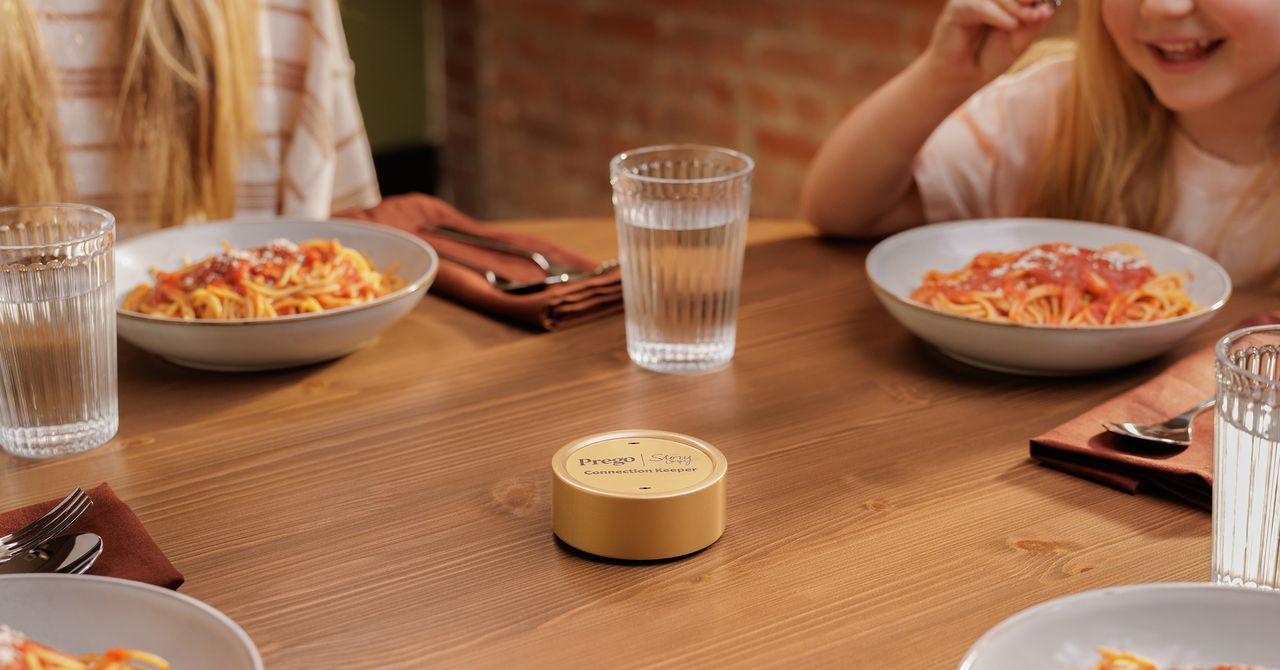
Prego, the pasta sauce company, is getting into hardware with a device that sits on your table and records dinner conversations. No, this isn’t April Fools’.
The Connection Keeper is a round puck that houses two microphones for recording around the table. The recorder was developed in partnership with StoryCorps, the 20-year-old nonprofit that has recorded conversations with more than 720,000 people about their lives.
The Connection Keeper is more of a publicity stunt than a readily available product. Fewer than 100 will be made. The pucks look more like a tuna can than what you’d associate with the pasta sauce brand—small and meant to be tucked aside so as not to attract attention. The whole goal here, Prego and StoryCorps say, is to advocate for keeping people off their phones during dinner.
“Everything now is AI, and everyone has their phones on the table,” says Elyce Henkin, a managing director of StoryCorps studios and brand partnerships. “It interrupts the conversation and the flow. We wanted to get rid of that and go back to the basics and have everyone talking to each other.”
The pucks come packaged with cards inspired by StoryCorps, designed to prompt conversations between family members. Some are aimed at kids; some are aimed at parents or other family members.
The device doesn’t record automatically. Press a button, and the device begins recording CD-quality audio. Push the button again to stop. It records all the audio on a 16-GB microSD card that can hold up to eight hours of audio at a time. Those recordings can then be saved on a StoryCorps microsite or the family’s own storage. There is no cloud connection, no Wi-Fi, and no artificial intelligence features whatsoever.
The more communal element of the project is that StoryCorps will allow users to share their recordings on its website (or keep them private). Anything that has been voluntarily shared will also be physically preserved as a recording along with the larger StoryCorps collection within the US Library of Congress.
Prego is a US company, named after the Italian word for “you’re welcome.” I’ll tell you this from experience growing up in an Italian-American extended family: The Connection Keeper is going to have a hell of a time keeping track of a conversation at a table full of loud uncles and your wine-drunk grandma, who all talk at the same time.
“I think it’s how a lot of families are,” Henkin says. “What StoryCorps does is that it reminds us of our similarities and the humanity that’s in us all, even though we are all different. I imagine that if someone were to go through and listen to the collection, there would be rowdy moments, and there would be kids laughing and moms saying, ‘Don’t eat with your mouth full.’ That’s all part of the truth of it.”

Bose’s QuietComfort Ultra 2 earbuds are the best noise-canceling earbuds you can buy. Right now, they’re $50 off, which matches the best price we tend to see outside of special events like Black Friday and Cyber Monday. If you want to wait until November, they might hit $200 again, but otherwise $250 is a very fair deal—especially since they pop back up to $300 regularly. The discounted price applies to all five color options, including Black, Deep Plum, Desert Gold, Midnight Violet, and White Smoke (another rarity, as usually only the vivid colors go on sale).
Sometimes you just need to quiet the world. Whether it’s to play 10 hours of Coconut Mall on a loop to help you lock in and meet your Friday deadlines (thanks to my colleague Julia Forbes for that suggestion); muffle the crying babies, sniffling neighbors, and mysterious, potentially concerning clunking noises on an airplane; or to help you better appreciate the mix on Space Laces’ Vaultage 004 EP, active noise cancellation makes a huge difference to your listening experience.
The Bose QuietComfort Ultra 2 earbuds also have some of the best active noise cancellation you can find. They sound great out of the box, thanks to a custom sound profile based on the shape of your ears, but you can customize the EQ by using the app. The app also allows you to tweak touch controls and spatial audio.
The battery life lasts for about six hours, or 24 with the charging case. And while the noise cancellation can’t be beaten, these also have a pass-through feature called Aware mode, which filters in outside noise but smooths the loudest bits. That means you’ll be able to hear what’s going on, but you won’t be startled. True-crime podcast listeners, this one’s for you.
In fact, just about the only drawback we can find is that these might not be ideal for folks with super-small ears. Otherwise, they’re great all around, with solid call quality, excellent sound overall, and a sleek aesthetic. We think they offer good value at full price, so an extra $50 off is especially nice.
If you’re in the market for new headphones, but these don’t exactly fit what you’re looking for, we have plenty of other recommendations. Check out our guides to the Best Wireless Earbuds, Best Headphones for Working Out, Best Noise-Canceling Headphones, and Best Open Earbuds for additional hand-tested picks.

On November 16, 2021, Matthew Ziburis sat in his car in a residential neighborhood in the Bay Area stalking an “enemy,” as he put it. A veteran of both the US Army and Marine Corps, Ziburis had previously served in Iraq. But on this mission, he was working at the behest of China’s government. The targets that autumn day were American citizens: Arthur Liu and his teenage daughter, Alysa.
Arthur’s personal story was an exemplar of the American Dream. As a university student, he took part in the 1989 pro-democracy movement in China. After the crackdown at Tiananmen Square that year, he fled to the United States, settling in California. Arthur poured a small fortune and an equal amount of energy into molding Alysa into a figure skating phenom. As a national champion at age 13, she bantered along with Jimmy Fallon on The Tonight Show, and was at the time on track to represent America at the Winter Olympics the following year in Beijing.
Ziburis was surveilling the Liu home when he called Arthur, falsely claiming that he was a member of the US Olympic Committee who needed to discuss upcoming travel to Beijing, Arthur says. Ziburis was adamant that Arthur fax him copies of his and his daughter’s passports as part of a travel “preparedness check,” Liu tells WIRED. This struck Arthur as odd. In his many years dealing with sports bodies, he had never fielded such a request. Alysa’s agent did not respond to a request for comment.
Ziburis’ surveillance of Arthur and Alysa Liu that November day five years ago was just one episode in a bizarre saga that spanned from California to Beijing, touched New York City mayors and members of the US Congress, and has seen two people plead guilty and two more awaiting trial.
Unbeknownst to Ziburis, as he sat outside Aurthur and Alysa’s Northern California home, he too was being watched.
Ziburis had allegedly been dispatched to Northern California by Frank Liu, a self-styled fixer in the Chinese community from Long Island, New York, who was in turn receiving orders from a person in China named Qiang Sun. According to US authorities, Sun was working at the behest of the Chinese government. A concerned private investigator who once worked for Frank Liu had alerted the FBI to Frank’s escapades and was assisting authorities. Law enforcement was already on to Ziburis by the time he arrived. Anthony Ricco, Ziburis’ lawyer, did not respond to requests for comment.
Officers watched as Ziburis surveyed Arthur’s home and visited his law office. The heavy-set man sulking around Arthur’s office also caught the attention of a neighbor, who approached Ziburis and asked him if he needed help, Arthur says. Apparently concerned, the FBI called Arthur to warn him that Ziburis was heading to his home. By then, in part because of the harassment, Arthur and Alysa were boarding a plane to fly out of California. “It was like a movie,” Arthur says.
Alysa’s showing in Beijing in 2022 was disappointing. Burned out, she retired from the sport. Then in February, after returning to the ice after a two year hiatus, Alysa became the first US women’s figure skater to win Olympic gold since 2002—intentionally without her father by her side.
Despite her much-publicized complicated relationship with Arthur, Alysa’s success—punctuated by her signature pierced smile, racoon-tail dye job, and palpable joy for her sport—has reignited interest in the long-running case of transnational repression against her and her father. Human rights advocates and researchers have documented in recent years the lengths Beijing has taken to suppress critical voices, even those residing abroad or whose perceived transgressions date back decades.


Germany’s BOSS secures landmark Australian Open partnership

Prego Has a Dinner-Conversation-Recording Device, Capisce?

Long energy disruptions to raise pressures on SEA nations: S&P Global

-

 Fashion4 days ago
France’s LVMH Q1 revenue falls 6%, shows resilience amid Iran war
-

 Sports1 week ago
The case for Man United’s Fernandes as Premier League’s best
-

 Entertainment1 week ago
Palace left in shock as Prince William cancels grand ceremony
-
 Business1 week ago
UK could adopt EU single market rules under new legislation
-

 Entertainment5 days ago
Is Claude down? Here’s why users are seeing errors
-

 Sports1 week ago
Lamar Jackson hits back at critics with faithful message on social media
-

 Fashion1 week ago
Energy emerges as biggest cost driver in textile margins
-
 Business1 week ago
Delta Air Lines unveils first new Delta One suite in premium cabin arms race