

Tech
I’ve Tested 17 Different Alexa Speakers in the Last 3 Years. These Are the Ones Worth Buying

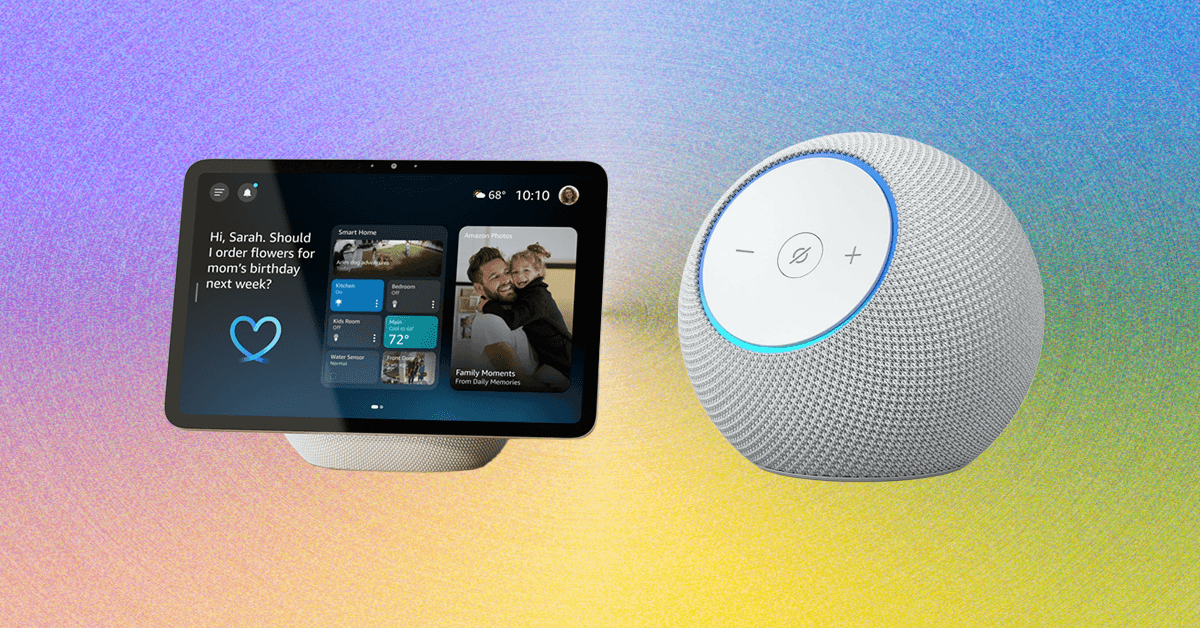
Comparing Our Favorite Alexa Speakers
Other Alexa (or Alexa-Compatible) Speakers
There are a lot of Echo devices out there, and some third-party speakers that are Amazon Alexa–compatible. Here’s every Alexa smart speaker we’ve tried and what we thought of it.
Amazon Echo (4th Gen) for $80: Amazon’s fourth-generation Echo notably changed the shape of the cylindrical speaker into a sphere. It was previously our top pick, but now has been discontinued as Amazon has launched new speakers, and there’s very limited stock available at third-party retailers like Walmart.
Amazon Echo Hub for $180: The Amazon Echo Hub is similar to an Echo Show, but without the speaker. Instead it’s a thin device that feels a bit like a tablet, designed to be mounted on the wall (or placed on a separately purchased stand, which is how I used it) and used to control your smart home devices. It’s a great choice for anyone who wants something focused on smart home control only. You can still ask Alexa questions and even play music, but the thin speakers aren’t worth playing music from. But you can tell your Echo Hub to play music on a different set of speakers, and even set up default speakers to work with it. It’s a great companion device if you already have a smart home setup.
Amazon Echo Pop for $40: The Echo Pop is a perfectly fine little speaker, and the cutest one in Amazon’s lineup. Does it have great sound? No. It’s fine enough for background tunes or if you’re limited to a dorm room, but you’ll get much better sound for a similar size from the Echo Dot (but you’ll pay a little more, and you won’t get as cute of colors!)
Amazon Echo Show 5 (3rd Gen) for $90: This smart display is another just-fine option, but it’s too small to be a great display, and the included camera makes it a no for a bedside table; better to go with the above Echo Spot or an Echo Dot.
Amazon Echo Show 8 (4th Gen) for $180: I usually love an Echo Show 8, but this model didn’t have the same sound quality as the older model. If you’re going to get one of Amazon’s new displays, you’re better off getting the Echo Show 11 ($220) for the same experience with a slightly larger screen (while it’s a three inch difference, it doesn’t feel that big) and better sound.
Amazon Echo Show 10 (3rd Gen) for $250: This smart display has big sound, but its wonky shape makes it hard to seamlessly fit into your home. It’s cool that it can follow you around while you speak to it, but also kinda weird. It’s great if you have a big kitchen island you’re always moving around, but not much else. It’s been out of stock for a while now, though, and with the new Echo Show 11 out, we’re guessing we won’t see it return.
Amazon Echo Show 15 (2nd Gen) for $300: This smart display is a good display, but it clearly wants to double as a TV and isn’t very good at it yet. I’m hoping we see better TV-related performance in the future to make it worth adding to a kitchen or office. It does a great job with widgets, though, thanks to the massive 15.6-inch screen. There’s also the larger Echo Show 21 ($400), which is essentially the same thing but larger.
Amazon Echo Sub for $130: This subwoofer was our top pick for bass, which can be paired with other Echo speakers to add some bass to your jam sessions. It’s currently unavailable on Amazon but still around for third-party retailers like Best Buy, and we’re keeping a eye out to see if it comes back in stock or not. Amazon did not confirm whether or not it would when asked.
JBL Authentics 200 for $380: This JBL smart speaker speaks both Google Assistant and Amazon Alexa, letting you split between the two for different tasks without having to switch your preference in the app. That makes this speaker particularly appealing for folks with a sprawling collection of smart products from both.
Sonos Era 100 for $199: If you’re looking for a speaker that can talk to Alexa but isn’t necessarily made by Amazon, the Sonos Era 100 is a great option. We just wished we liked the Sonos app better. You can catch our entire guide to the Sonos ecosystem here.
Meet Alexa+
Photograph: Nena Farrell
Amazon has started rolling out the new and improved Amazon Alexa, named Alexa+. It’s available right now for free in early access, though you’ll have to join a waiting list and wait to get selected. I got to check out Alexa+ on my Echo Show devices (which are the only devices you can use Alexa+ on during early access), and it’s been a pretty positive experience. I like the updated, more conversational voice, and Alexa+ did a good job answering all kinds of questions quickly and thoughtfully. Check out our early access hands-on for everything I thought while testing.
Alexa+ has caused some changes, even for those not using it. It requires that all voice recordings be sent to Amazon to be processed. Amazon has changed its features wholesale—now all recordings with regular Alexa go to Amazon, too. There used to be a “Do Not Send Voice Recordings” privacy feature that you could select to have voice requests processed locally, but that feature was killed on March 28, 2025, per an email Amazon sent out to current users of that feature.
There isn’t a timeline for when early access will be done and the final version will roll out. Once out of early access, Alexa+ will be available for $20 a month, or free if you have an Amazon Prime membership. While you likely have a membership if you added an Alexa device to your home, it’s a big jump from the previously free assistant. Still, it’s a nice upgrade and much more on par with the AI assistants of the world, which isn’t a surprise since it’s built on generative AI.
FAQs
What’s the Difference Between an Echo and an Echo Show?
A regular Echo is a smart speaker, or a speaker with microphones in it so it can hear you speak to it and respond. An Echo Show is a smart display, which has a screen and a camera to let you make video calls, stream content, and see your questions answered on a screen. Both have similar capabilities when it comes to smart home control, answering questions, and playing music, but Echo Shows have extra abilities thanks to the screen. All Echo Shows have a camera and come with a physical camera cover for privacy.
When’s the Best Time to Buy an Echo?
The best time to buy any Amazon speaker is during a major sale event like Black Friday or Amazon Prime Day, when there are often steep discounts. You’ll often see the cheaper speakers discounted for around 50 percent off, and the larger speakers see some nice sale prices too.
How and Where Should You Set Up Your Alexa?
Alexa speakers get the best use in spaces you’re in often. I like setting mine up in my kitchen and living room—usually a display in the kitchen, so I can pull up a recipe or the weather while I make my morning cup of tea, and a speaker in the living room so I can play music and command the lights without a screen to distract from the TV or playing with my son. You can also set one up in the bedroom to use as an alarm clock, but make sure it’s a model without a camera for the best privacy.
Ultimately, what’s most important is that the speaker is somewhere it can hear your commands. Where that will be will vary based on your home, but think about where you’ll be when you ask for the weather or to dim the lights, and place your speaker accordingly.
You’ll set up Alexa speakers using the Alexa app, which allows you to manage multiple Alexa speakers if you own more than one through your Amazon account. Third-party speaker setup methods may vary.
Is Alexa Always Listening?
Alexa is always listening, to a certain extent. It’s designed to only listen for its wake word, and shouldn’t be recording or processing any audio unless it hears that word. But Alexa can sometimes mishear a word and think it’s the wake word, or hear a word similar enough to activate the speaker. If you’ve owned an Alexa, there’s likely been times that the assistant suddenly responds when you weren’t speaking to it. Once it hears the wake word (or what it believes to be is the wake word) it will start listening to everything in an attempt to hear what you need and respond.
Alexa+, the latest version of Alexa, will also remain on for a little bit after you ask a question to listen for follow-up questions, no wake word required. Both Alexa and Alexa+ light up in some fashion (regular speakers will turn the light ring blue, while the displays will have a blue bar appear on the screen) to let you know the assistant is listening. Most Echo devices also have a physical mute button, and will display a red light or red bar to let you know when the mute is activated.
How Do You Remove Ads and Spam From an Echo Show?
If you’re using an Echo Show device, you’ve likely noticed there’s tons of default content the device will show you. Sports scores! Local news! A recipe you might be interested in! It makes the device exhausting and annoying to be near.
Here’s how you can control what you see:
- Swipe down from the top of your Echo Show to pull up the menu, and select Settings.
- In the Settings menu, choose Home Content.
- There are upward of 40 options you can toggle on and off on this menu, and you should remove as many as you can that you don’t use. I usually remove all but weather forecasts and recently played audio.
While you’re able to turn off interest-based ads from third-party skills (this is under Alexa Privacy in the Settings menu), it won’t stop all ads. The only setting that is ad-free is choosing Photo Display mode, which can use either Amazon’s included library of photos or your own. The downside is that that turns it into a digital photo frame, so you won’t even see a clock or features like widgets.
Can I Have My Alexa Requests Locally Processed, or Do They Have to Go to the Cloud?
There used to be a privacy feature called Do Not Send Voice Recordings that let you have all your voice requests processed locally on your Alexa device, instead of being sent to Amazon’s cloud storage. That feature was killed in March 2025 to support Alexa+, and even if you continue to use the old Alexa, you don’t have access to that feature any longer.
Alexa+ is still only in early access, and you can only get it by joining the wait list and waiting to be selected. It’s random, and so far Amazon doesn’t have a timeline for when everyone on the list will get it or when early access will be over. You’ll just have to join the wait list and wait to see when you’re chosen. Once you do, check out our hands-on for what we liked about Alexa+ so far.
How Does WIRED Select Smart Speakers to Test? How Are These Speakers Tested?
For this guide, we specifically test speakers that are compatible with Amazon Alexa. It’s a big limitation and narrows down the options significantly, especially compared to speaker options you’ll see in our other guides like the Best Bluetooth Speakers. That’s mainly Amazon’s own ecosystem of speakers, and while there are third party options, the best options tend to be of Amazon’s own design to work with its own voice assistant.
Each speaker gets installed in a tester’s home to test for day-to-day use, as well as to see how the microphone performs, how the speaker sounds with different types of music, how well the smart home control features work with compatible devices such as smart lights and video doorbells, and other features as necessary (e.g., streaming features on smart displays).
How Does WIRED Get Models? What Does WIRED Do After Testing Them?
We acquire review units usually as a press sample, though we will also independently purchase samples if need be. All review units in this guide were provided as press samples with no obligation to cover or promises for what that coverage would be.
After testing, we keep most of our picks either installed for long-term testing in our homes, or in storage to compare against updated models and new speakers that come out. If the sample becomes irrelevant or unnecessary to keep, we donate it locally.
Power up with unlimited access to WIRED. Get best-in-class reporting and exclusive subscriber content that’s too important to ignore. Subscribe Today.










Do you like having a second screen with your computer setup? What if your laptop could carry a second screen for you? That’s the idea behind Lenovo’s latest proof of concept, the ThinkBook Modular AI PC, announced at Mobile World Congress in Barcelona.
Lenovo is never shy to show off wacky, weird concept laptops. We’ve seen a PC with a transparent screen, one with a rollable OLED screen, a swiveling screen, and another with a flippy screen. At CES earlier this year, the company showed off a gaming laptop with a display that expands at the push of a button. Sometimes, these concepts turn into real products that go on sale (often in limited quantities).
At MWC 2026, Lenovo trotted out three concepts. While it’s unclear whether any of them will become real, purchasable products, there’s some unique utility here, and a peek at how computing experiences could change in the future.
A Laptop With a Built-In Portable Screen

As someone with a multi-screen setup at home and a fondness for portable monitors, the ThinkBook Modular AI PC appeals to me the most. At first glance, it looks like a normal laptop. Take a look behind, and you’ll notice there’s a second screen magnetically hanging off the back of the laptop, like a koala carrying a baby on its back.
The screen is connected to the laptop using pogo-pin connectors, so you can use it in this state to display content to people in front of you, say, if you were making a presentation during a meeting. Alternatively, you can pop this second screen off, remove a hidden kickstand resting under the laptop, and magnetically attach it to the 14-inch screen so that you have a traditional portable monitor experience. (You’ll need to connect this to the laptop via a USB-C cable in this orientation.)
If you don’t have the desk space for that orientation, you can always remove the keyboard from the base and pop the second screen there—it’ll auto-connect to the laptop via the pogo pins, and you’ll be able to use the Bluetooth keyboard to type on a dual-screen setup that resembles the Asus ZenBook Duo. The whole system is a fantastically portable method of improving productivity on the go, and the laptop isn’t too thick or cumbersome.

More recently, Iran has been a regular adversary in cyberspace—and while it hasn’t demonstrated quite the acuity of Russia or China, Iran is “good at finding ways to maximize the impact of their capabilities,” says Jeff Greene, the former executive assistant director of cybersecurity at CISA. Iran, in particular, famously was responsible for a series of distributed-denial-of-service attacks on Wall Street institutions that worried financial markets, and its 2012 attack on Saudi Aramco and Qatar’s Rasgas marked some of the earliest destructive infrastructure cyberattacks.
Today, surely, Iran is weighing which of these tools, networks, and operatives it might press into a response—and where, exactly, that response might come. Given its history of terror campaigns and cyberattacks, there’s no reason to think that Iran’s retaliatory options are limited to missiles alone—or even to the Middle East at all.
Which leads to the biggest known unknown of all:
5. How does this end? There’s an apocryphal story about a 1970s conversation between Henry Kissinger and a Chinese leader—it’s told variously as either Mao-Tse Tung or Zhou Enlai. Asked about the legacy of the French revolution, the Chinese leader quipped, “Too soon to tell.” The story almost surely didn’t happen, but it’s useful in speaking to a larger truth particularly in societies as old as the 2,500-year-old Persian empire: History has a long tail.
As much as Trump (and the world) might hope that democracy breaks out in Iran this spring, the CIA’s official assessment in February was that if Khamenei was killed, he would be likely replaced with hardline figures from the Islamic Revolutionary Guard Corps. And indeed, the fact that Iran’s retaliatory strikes against other targets in the Middle East continued throughout Saturday, even after the death of many senior regime officials—including, purportedly, the defense minister—belied the hope that the government was close to collapse.
The post-World War II history of Iran has surely hinged on three moments and its intersections with American foreign policy—the 1953 CIA coup, the 1979 revolution that removed the shah, and now the 2026 US attacks that have killed its supreme leader. In his recent bestselling book King of Kings, on the fall of the shah, longtime foreign correspondent Scott Anderson writes of 1979, “If one were to make a list of that small handful of revolutions that spurred change on a truly global scale in the modern era, that caused a paradigm shift in the way the world works, to the American, French, and Russian Revolutions might be added the Iranian.”
It is hard not to think today that we are living through a moment equally important in ways that we cannot yet fathom or imagine—and that we should be especially wary of any premature celebration or declarations of success given just how far-reaching Iran’s past turmoils have been.
Defense Secretary Pete Hegseth has repeatedly bragged about how he sees the military and Trump administration’s foreign policy as sending a message to America’s adversaries: “F-A-F-O,” playing off the vulgar colloquialism. Now, though, it’s the US doing the “F-A” portion in the skies over Iran—and the long arc of Iran’s history tells us that we’re a long, long way from the “F-O” part where we understand the consequences.
Let us know what you think about this article. Submit a letter to the editor at mail@wired.com.
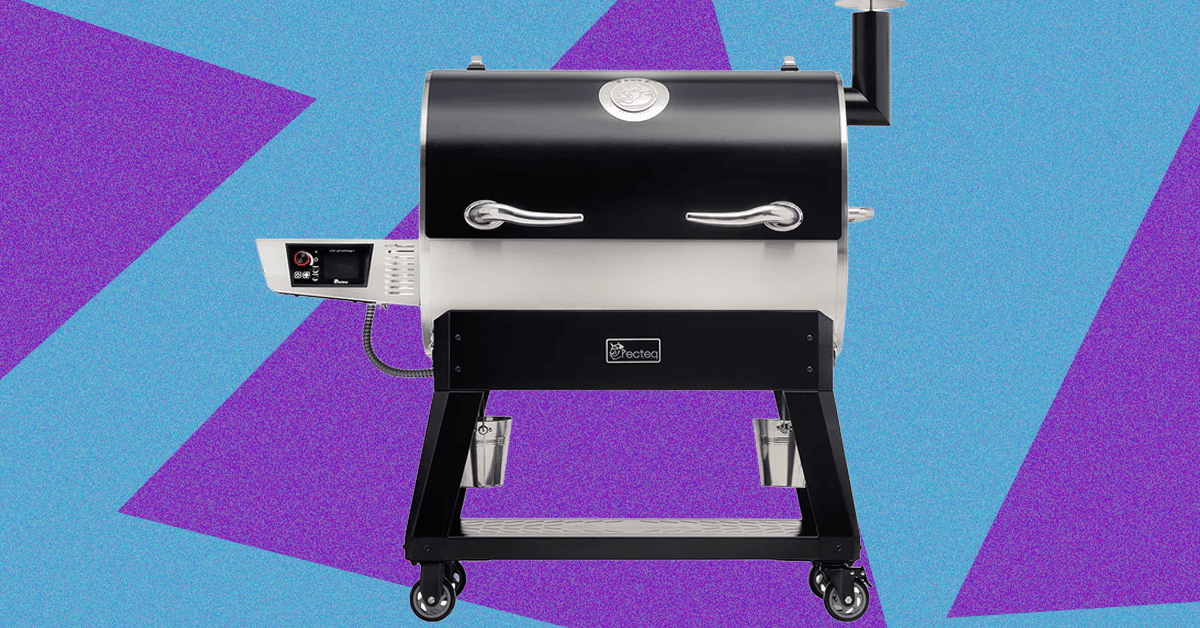
While my love of smoked meats is well-documented, my own journey into actually tending the fire started just last spring when I jumped at the opportunity to review the Traeger Woodridge Pro. When Recteq came calling with a similar offer to check out the Flagship 1600, I figured it would be a good way to stay warm all winter.
While the two smokers have a lot in common, the Recteq definitely feels like an upgrade from the Traeger I’ve been using. Not only does it have nearly twice the cooking space, but the huge pellet hopper, rounded barrel, and proper smokestack help me feel like a real pitmaster.
The trade-off is losing some of the usability features that make the Woodridge Pro a great first smoker. The setup isn’t as quite as simple, and the larger footprint and less ergonomic conditions require a little more experience or patience. With both options, excellent smoked meat is just a few button presses away, but speaking as someone with both in their backyard, I’ve been firing up the Recteq more often.
Getting Settled
Photograph: Brad Bourque
Setting up the Recteq wasn’t as time-consuming as the Woodridge, but it was more difficult to manage on my own. Some of the steps, like attaching the bull horns to the lid, or flipping the barrel onto its stand, would really benefit from a patient friend or loved one. Like most smokers, you’ll need to run a burn-in cycle at 400 degrees Fahrenheit to make sure there’s nothing left over from manufacturing or shipping. Given the amount of setup time and need to cool down the smoker after, I would recommend setting this up Friday afternoon if you want to smoke on a Saturday.


Lenovo’s Latest Wacky Concepts Include a Laptop With a Built-In Portable Monitor

USA vs. Argentina (Mar 1, 2026) Live Score – ESPN

Shia LaBeouf battles addiction amid public and legal pressure

Pakistan carries out precision strikes on seven militant hideouts in Afghanistan

Eye-popping rise in one year: Betting on just gold and silver for long-term wealth creation? Think again! – The Times of India

The Supreme Court’s Tariff Ruling Won’t Bring Car Prices Back to Earth

-
 Politics1 week ago
Pakistan carries out precision strikes on seven militant hideouts in Afghanistan
-
Business1 week ago
Eye-popping rise in one year: Betting on just gold and silver for long-term wealth creation? Think again! – The Times of India
-
 Tech1 week ago
The Supreme Court’s Tariff Ruling Won’t Bring Car Prices Back to Earth
-

 Tech1 week ago
These Cheap Noise-Cancelling Sony Headphones Are Even Cheaper Right Now
-

 Sports1 week ago
Kansas’ Darryn Peterson misses most of 2nd half with cramping
-
 Entertainment1 week ago
Saturday Sessions: Say She She performs "Under the Sun"
-

 Sports1 week ago
How James Milner broke Premier League’s appearances record
-

 Entertainment1 week ago
Viral monkey Punch makes IKEA toy global sensation: Here’s what it costs