

Tech
Jeffrey Epstein Advised an Elon Musk Associate on Taking Tesla Private

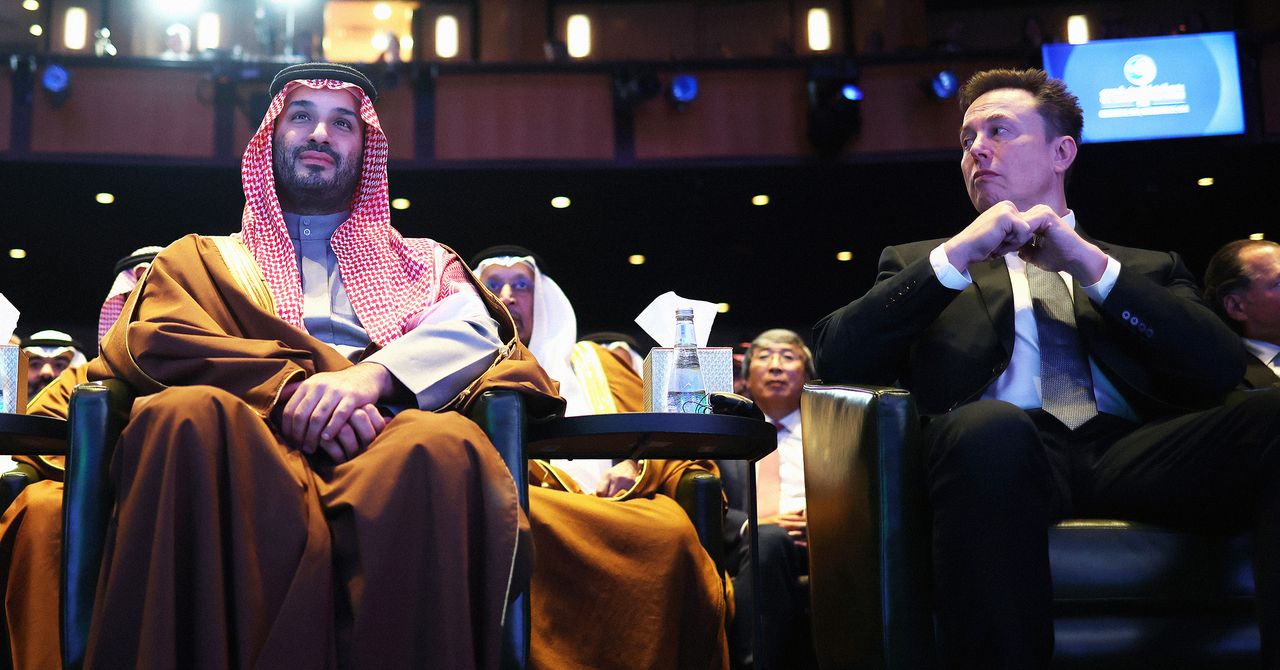
For Elon Musk, the US Justice Department’s release of 3 million additional files related to criminal investigations of Jeffrey Epstein last month was immediately embarrassing. Attention in particular fell on emails Musk sent the financier several years after he pleaded guilty to solicitation of prostitution and of procurement of minors to engage in prostitution in Florida and registered as a sex offender.
“What day/night will be the wildest party on your island?” Musk wrote in November 2012, for example, appearing to seek an invite to Little Saint James, Epstein’s private island in the Caribbean.
While there has been no confirmation that any such visit occurred, the messages contradict Musk’s longstanding insistence that he didn’t know Epstein well and had always rebuffed his overtures. Other files reveal that an associate of Musk’s spent weeks corresponding with Epstein behind the scenes of a major drama for Tesla and its embattled chief executive.
Musk did not return a request for comment.
A batch of emails reviewed by WIRED shows that in 2018, after Musk posted on social media that he was “considering taking Tesla private” in a move that never came to fruition, one of the CEO’s surrogates was sounding out Epstein for advice on financing the deal and potential board members for a reorganized Tesla. They also went back and forth over Musk’s leadership qualities.
Musk was having a difficult time in 2018, beset by challenges at his companies while his increasingly erratic behavior on social media seemed to take its toll on his public image. That June, as the world waited in suspense for the rescue of a Thai youth soccer team trapped in a submerged cave, he’d decided to involve himself. What he offered was a miniature submersible that he claimed could transport the children through narrow underwater tunnels to safety. The idea was rejected as impractical, with one cave diver dismissing it as a publicity stunt. Musk lashed out at this man on Twitter, calling him a “pedo guy.” He later deleted the post and apologized, but doubled down on the insult in emails to BuzzFeed News, which published them.
The incident led to that individual filing a lawsuit against Musk, alleging defamation, and Musk eventually won the court case a year later. But amid the unfolding PR disaster, Musk took counsel from the high-powered lobbyist and consultant Juleanna Glover as he sought to limit blowback. It was Glover who would later backchannel with Epstein about a plan to take Tesla private.
The idea of buying Tesla was sketchily outlined in another now-infamous Musk tweet. “Am considering taking Tesla private at $420,” he posted on August 7, 2018, adding: “Funding secured.” In fact, he had not secured those funds, and on September 27, the US Securities and Exchange Commission filed fraud charges against Musk, alleging “securities fraud for a series of false and misleading tweets.” Musk quickly settled to the tune of a $20 million fine, with Tesla paying an equal penalty, and stepped down as chairman of the electric vehicle company. (Musk neither admitted nor denied the truth of the SEC’s allegations.)
In the weeks between Musk’s reckless tweet and the SEC charge, Glover was working behind the scenes to make the deal a reality—and sought Epstein’s counsel, emails published by the DOJ show.
“If you are advising re: sovereign funds looking to help a prominent company go private, let me know if I can help w any approp additional information,” Glover wrote to Epstein on August 12. Epstein responded: “Clever.”








Tech
I Tested Garmin Watches for a Decade While Hiking, Biking, and Climbing. Here’s What You Should Buy
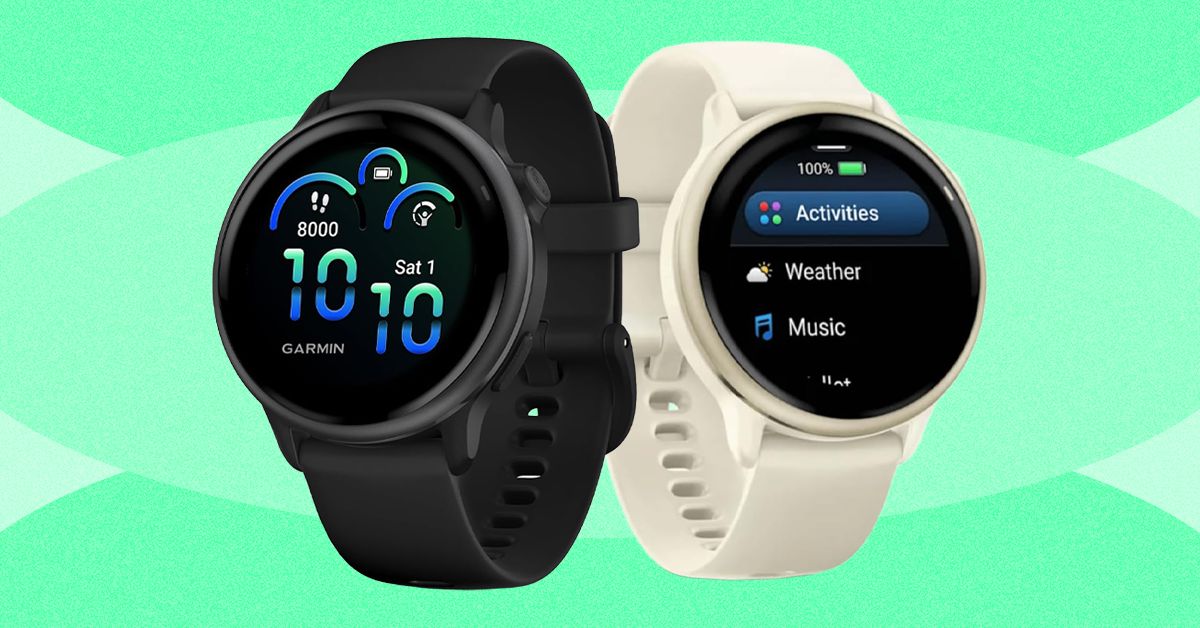
Last year, Garmin introduced a Pro version that incorporates the inReach’s satellite communications savvy. Not only does it cost at least $400 more than the Apple Watch Ultra and $200 more than the regular Fenix 8, but you also have to pay for the inReach subscription plan, which has several tiers and ranges from $8/month to $50/month depending on whether you want features like unlimited texting or sending photo messages.
What you get for this mind-boggling price is a sports watch that can do anything and everything. It has best-in-class battery life (every Fenix can last for weeks on a single charge, and up to a month with solar charging) and features like the depth sensor from Garmin’s Descent line, which means this watch works as a full-on dive computer for scuba and free diving. It has a microphone and speaker for basic voice commands (although no onboard cellular connectivity), the surprisingly useful built-in LED flashlight, and Garmin’s signature built-in topographic maps, 24/7 health monitoring, and tracking for over a hundred different activities.
I’ve taken the 51-mm version on pretty much every outdoor sport—snowboarding, trail running, mountain biking, and rock climbing. Every time I use it, its capabilities far outclass my own. I have irritated many a fellow climber by attempting to track route difficulty, duration, and falls while integrating my Body Battery metrics and so on. The danger is always that you’ll spend more time fiddling with your Garmin Fenix 8 than you do with your actual sport. I have the version with the sapphire glass face and the titanium bezel, and have smashed it into rock faces with nary a scratch. If you’re up for paying the price and want a good-looking watch that will last forever (I have friends who are still wearing their Fenix 5s and 6s, and honestly, they’re fine), this is the one to get.
Best Running Watch
The Garmin Forerunner series launched in the early 2000s and has become the quintessential runner’s watch. Like all Garmins, the Forerunner comes in a range of price points, each offering different features. Last year, Garmin released the Forerunner 570 ($550), a midrange model with no LED flashlight or onboard maps, and the Forerunner 970 ($750), which is the premium version. Before I go into detail about why the Forerunner 970 is the best option, I should also say that I have tested many previous Garmin Forerunners at various price points. If you’re not a triathlete, the older Forerunners are still worth considering, and the entry-level $200 Forerunner 165 is aimed explicitly at runners, instead of including triathletes as the more expensive models do.

Acer is one of the top largest PC manufacturers in the world, perhaps best known for its gaming line and budget-friendly options. If you’ve already got your eye on an Acer product like a laptop or monitor, and are shopping at the company’s online storefront, you should be using one of these Acer promo codes and coupons to save some cash on your purchase.
Save 40% on Accessories When You Build an Acer Bundle
If you’re buying from Acer, you’re most likely shopping for either a desktop PC or laptop. With this discount, you can get a really solid deal on accessories if you bundle it with a mouse, laptop bag, or headset. When you go to purchase a PC, just click “Build Bundle” and you’ll see some of the eligible options, all of which are reduced by 40%. The Nitro Mechanical Keyboard, for example, goes from $50 to just $30. That 40% is a real discount, too, as that same keyboard costs $50 on Amazon when I checked.
Beyond peripheral add-ons, you can also save 10% off Acer Care Plus extended service plans or McAfee LiveSafe antivirus subscriptions. You can bundle up to five products together to save the most money. If you’re headed off to college (or have a kid in the family), a bundle like this can get you everything you need for a gaming or studying setup on the go.
Shop Rotating Weekly Deals on Monitors and Gaming Gear
Acer’s PC gaming offerings come in either the flagship Predator brand or the budget-tier Nitro. Acer offers rotating weekly deals on everything from monitors to gaming laptops, some of which are my favorites that I’ve tested in their given category. The Acer Nitro V 16, for example, was a budget gaming laptop that I recommended quite a lot last year because of its incredible price. The one I tested was the entry-level version with an Nvidia RTX 5050 inside, but Acer has the RTX 5060 model in its own storefront. It’s $100 off right now at $1,200, which comes with 16 GB of RAM and a terabyte of storage. In fact, it’s only $30 more than the RTX 5050 model, despite offering a significant jump in gaming performance. These discounts are reflected right on the product pages, so there’s no promo code, discount code, or coupon code required.
Acer has a wide selection of monitors available, too, whether that’s a massive 49-incher or a more modest 27-inch gaming workhorse. One of my favorite discounts I saw right now was the Acer Nitro XV2, a 27-inch 1440p display with a 300 Hz refresh rate. It’s 44% off at the time of writing, bringing the price down to just $250. Because these discounts are swapped out on a weekly basis, it’s worth checking back to see if the product you’re eyeing has a new discount.
Select Customers Can Get 15% Off Their Purchase
Acer also offers a number of added discounts at checkout, including 15% off for students. Students will need to verify through Student Beans or SheerID. Because a lot of the devices Acer offers are budget-friendly, they can be attractive for students, and the extra 15% off is the icing on the cake.
We tested the Acer Swift 16 AI last year and really enjoyed the high-resolution, OLED screen and impressively quiet performance. Acer has the smaller version of this same laptop available, the Swift 14 AI, which is currently $150 off. You also might check out the Acer Chromebook Plus 514, a laptop we liked quite a bit when we reviewed it in 2024.
Acer offers this same 15% discount for active duty military, veterans, and their families. It also applies to healthcare professionals, which can be verified through its healthcare discount portal.

The world’s top AI research conference, the Conference on Neural Information Processing Systems—better known as NeurIPS—became the latest organization this week to become embroiled in a growing clash between geopolitics and global scientific collaboration. The conference’s organizers announced and then quickly reversed controversial new restrictions for international participants after Chinese AI researchers threatened to boycott the event.
“This is a potential watershed moment,” says Paul Triolo, a partner at the advisory firm DGA-Albright Stonebridge who studies US-China relations. Triolo argues that attracting Chinese researchers to NeurIPS is beneficial to US interests, but some American officials have pushed for American and Chinese scientists to decouple their work—especially in AI, which has become a particularly sensitive topic in Washington.
The incident could deepen political tensions around AI research, as well as dissuade Chinese scientists from working at US universities and tech companies in the future. “At some level now it is going to be hard to keep basic AI research out of the [political] picture,” Triolo says.
In its annual handbook for paper submissions, issued in mid-March, NeurIPS organizers announced updated restrictions for participation. The rules stated that the event could not provide services including “peer review, editing, and publishing” to any organizations subject to US sanctions, and linked to a database of sanctioned entities. It included companies and organizations on the Bureau of Industry and Security’s entity list and those on another list with alleged ties to the Chinese military.
The new rules would have affected researchers at Chinese companies like Tencent and Huawei who regularly present work at NeurIPS. The database also includes entities from other countries such as Russia and Iran. The US places limits on doing business with these organizations, but there are no rules around academic publishing or conference participation.
The NeurIPS handbook has since been updated to specify that the restrictions apply only to Specially Designated Nationals and Blocked Persons, a list used primarily for terrorist groups and criminal organizations.
“In preparing the NeurIPS 2026 handbook, we included a link to a US government sanctions tool that covers a significantly broader set of restrictions than those NeurIPS is actually required to follow,” the event’s organizers said in a statement issued Friday. “This error was due to miscommunication between the NeurIPS Foundation and our legal team.”
Before they reversed course, the conference organizers initially said that the new rule was “about legal requirements that apply to the NeurIPS Foundation, which is responsible for complying with sanctions,” adding that it was seeking legal consultation on the issue.
Immediate Backlash
The new rule drew swift backlash from AI researchers around the world, particularly in China, which produces a large quantity of cutting-edge machine learning papers and is home to a growing share of the world’s top AI talent. Several academic groups there issued statements condemning the measure and, more importantly, discouraging Chinese academics from attending NeurIPS in the future. Some urged Chinese academics to contribute instead to domestic research conferences, potentially helping increase the country’s influence in relevant science and tech fields.
The China Association of Science and Technology (CAST), an influential government-affiliated organization for scientists and engineers, said Thursday that it would stop providing funding for Chinese scholars traveling to attend NeurIPS and would use the money instead to support domestic and international conferences that “respect the rights of Chinese scholars.”
CAST also said it will no longer count publications at the 2026 NeurIPS conference as academic achievements when evaluating future research funding. It’s unclear if the organization will reverse course now that NeurIPS has walked back the new rule.


USMNT handed reality check by Doku, Belgium ahead of World Cup

Hubert Kós leads Texas men to second straight NCAA swim title

Pakistan rejects India’s remarks on Shia community, calls them ‘cynical, diversionary’

-
 Business1 week ago
Flipkart group CFO to leave co amid IPO plans – The Times of India
-

 Fashion1 week ago
China’s textile & apparel exports surge 17% to $50 bn in Jan-Feb 2026
-

 Sports1 week ago
Rating Adidas’ 2026 World Cup away shirts: Argentina, Spain, Mexico and more
-

 Sports1 week ago
American Conference Commissioner Tim Pernetti thanks Trump for Army-Navy game executive order
-
Tech1 week ago
The Corsair 4000D RS PC Case Keeps Your System Cool
-

 Tech1 week ago
Gamers Hate Nvidia’s DLSS 5. Developers Aren’t Crazy About It, Either
-
 Business5 days ago
Property Play: Home flippers see smallest profits since the Great Recession, real estate data firm says
-
 Business1 week ago
‘Marriage penalty’ in Washington state’s new millionaire tax stirs debate